If your event has volunteer tasks that still need helpers, a progress bar appears on your event page showing the community how many slots have been filled so far. Here's how it works, and how to hide it if you'd rather not display the numbers.
When does the progress bar appear?
The progress bar shows up automatically on your event page once at least one task on that event still needs volunteers, and updates as people sign up. You don't need to switch anything on.
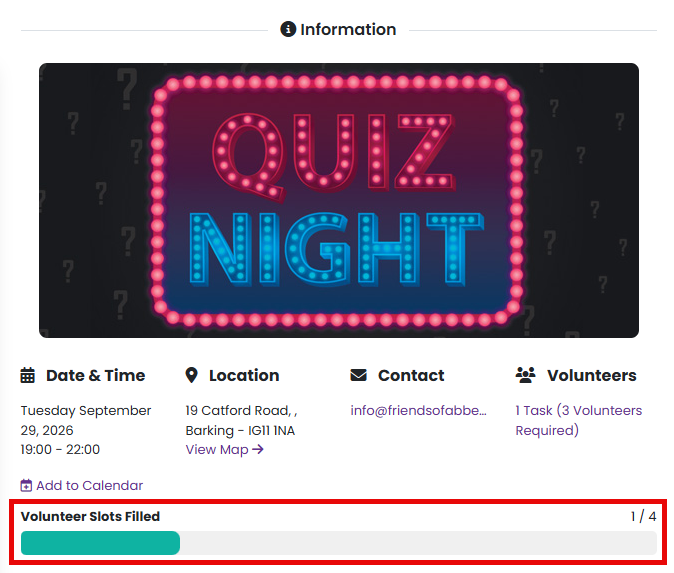
It won't appear if:
- You haven't added any volunteer tasks to the event yet, or
- All your tasks are already fully staffed, or
- Any of your tasks have their volunteer numbers hidden (see Hide No Of Volunteers Required when editing a task) - in that case the bar stays hidden across the whole event, so it can't indirectly reveal a number you've chosen to keep private.
Hiding the progress bar
If you'd rather not show the progress bar at all - even when volunteers are still needed - you can switch it off from the event editor:
- Go to Admin > Events and open the event you want to edit.
- Under the Options section, tick Hide Volunteer Progress Bar.
- Click Save.
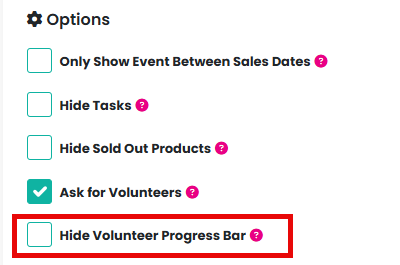
This option is available for every event, so it's there and ready even before you've added your volunteer tasks. It only affects the progress bar - your task list and the volunteer sign-up form on the event page work exactly as before.
You may like to read:
How can I recruit volunteers?
Where can I see everyone who's volunteered for my event?
Why aren't tasks showing for volunteers?
Was this article helpful?
That’s Great!
Thank you for your feedback
Sorry! We couldn't be helpful
Thank you for your feedback
Feedback sent
We appreciate your effort and will try to fix the article