Once you've added an event, you don't have to rely on people spotting it on your website - you can email your customers directly to let them know it's live. There are three ways to send this notification, depending on where you are in the process.
Who receives the notification?
The email is sent to every customer with marketing emails enabled who hasn't unsubscribed. Each notification includes the event name, date and time, description, and a link straight through to the event so they can view details and book.
1. When adding a new event
- Go to Admin > Events
- Click Add Event
- Fill in your event details as normal
- Before saving, tick Notify customers by email that this event has been created
- Save the event
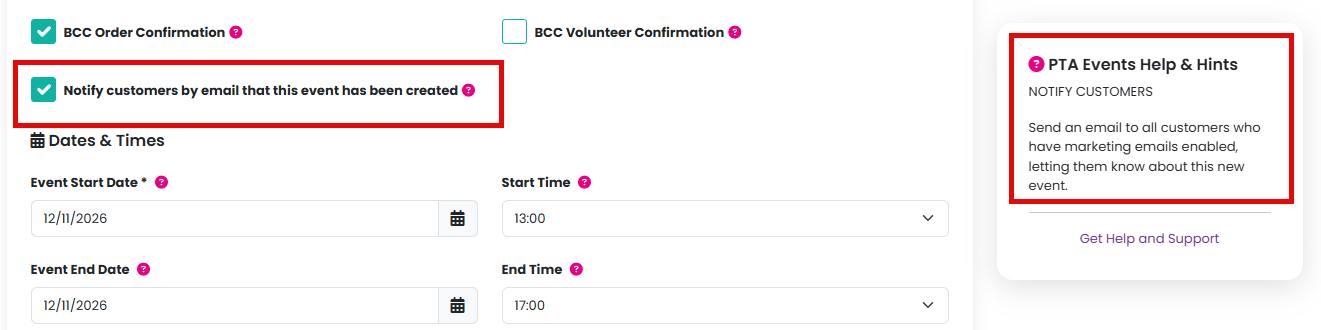
The notification email goes out as soon as the event is created.
2. When adding an event from a template
- Go to Admin > Events
- Click Add Event From Template and choose your template
- Enter the required information in the first step Basic Event Information
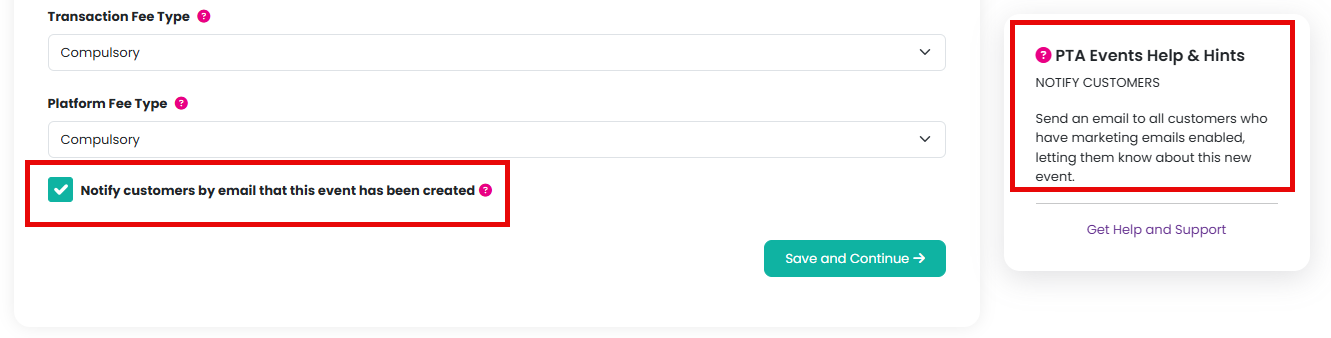
- Before saving, tick Notify customers by email that this event has been created
- Click the Save and Continue button and complete the three further steps
3. At any time, from the event management menu
Forgot to tick the box when you created the event, or want to send a reminder later? You can trigger the notification separately whenever you like.
- Go to Admin > Events
- Find the event in your events list
- Click the Manage menu next to it and select Notify Customers
- Confirm you want to continue by clicking on the Notify Customers button
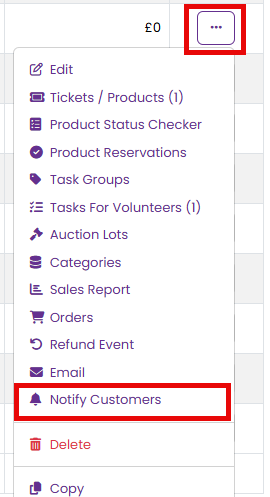
Note: This sends the same notification as options 1 and 2, so it's best used once per event to avoid emailing customers about the same event more than once.
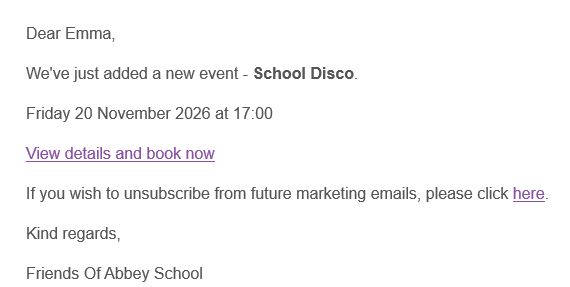
The email contains the name and date of the event, plus a link to view and make a booking:
Related reading
Was this article helpful?
That’s Great!
Thank you for your feedback
Sorry! We couldn't be helpful
Thank you for your feedback
Feedback sent
We appreciate your effort and will try to fix the article