To refund an event, you will first need to ensure you have sufficient funds in your Stripe account to cover the refund costs.
You can access your Stripe dashboard via the following link:
https://dashboard.stripe.com/balance/overview
To add funds to your Stripe account, see the following FAQ on Stripe’s own support portal:
https://support.stripe.com/questions/fix-the-negative-balance-on-your-account?locale=en-GB
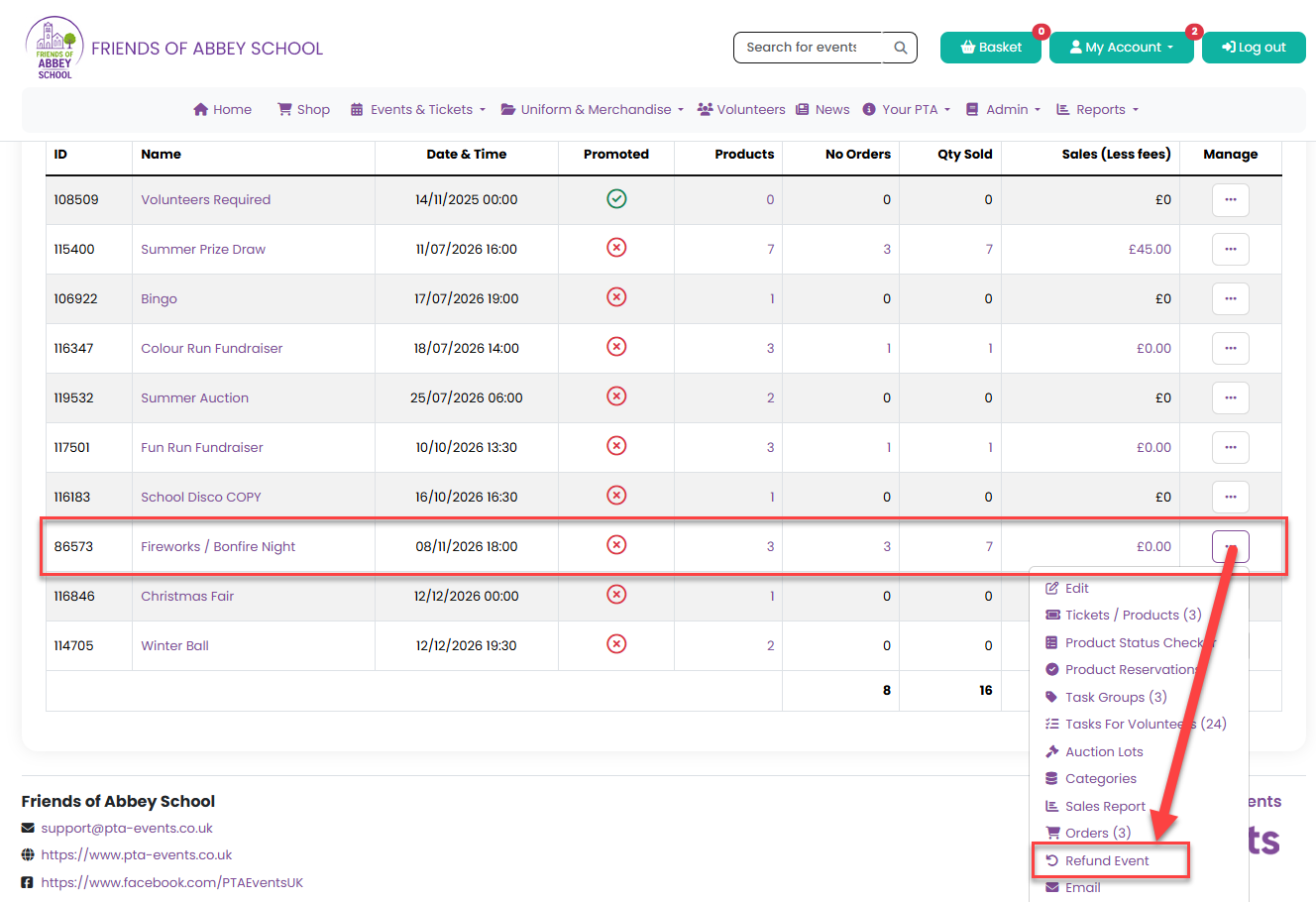
Once you’ve added funds, click Refund Event from your event management menu:
A modal window will appear that will enable you to select which products you want to refund. This gives you flexibility to refund individual products should you need to.
Select the product(s) to be refunded and choose whether you want to refund any fees customers have paid. If you do refund the fees, then your organisation is liable for them as they have already been taken by Stripe and PTA Events.
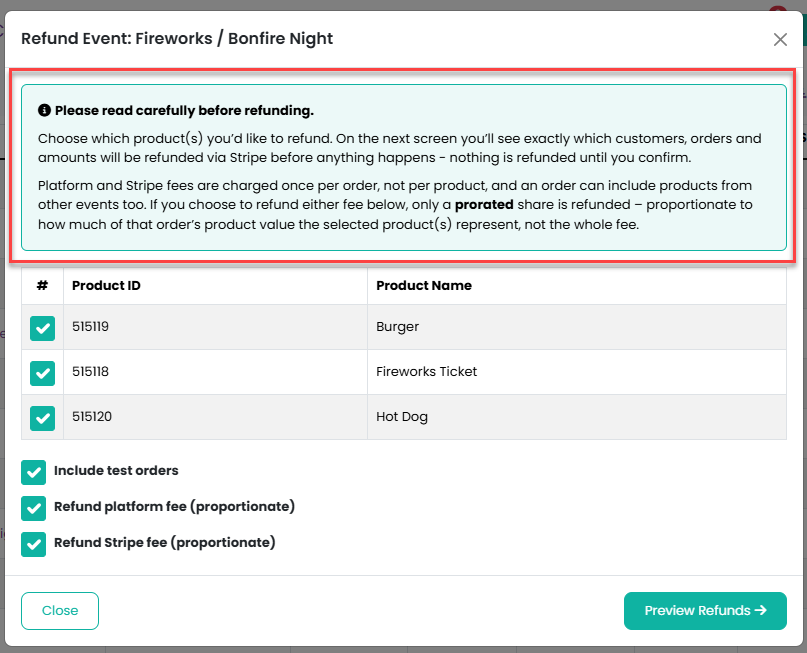
Please read the information shown on how fees are proportionally refunded.
Click the Preview Refunds button to see who should be refunded and how much:
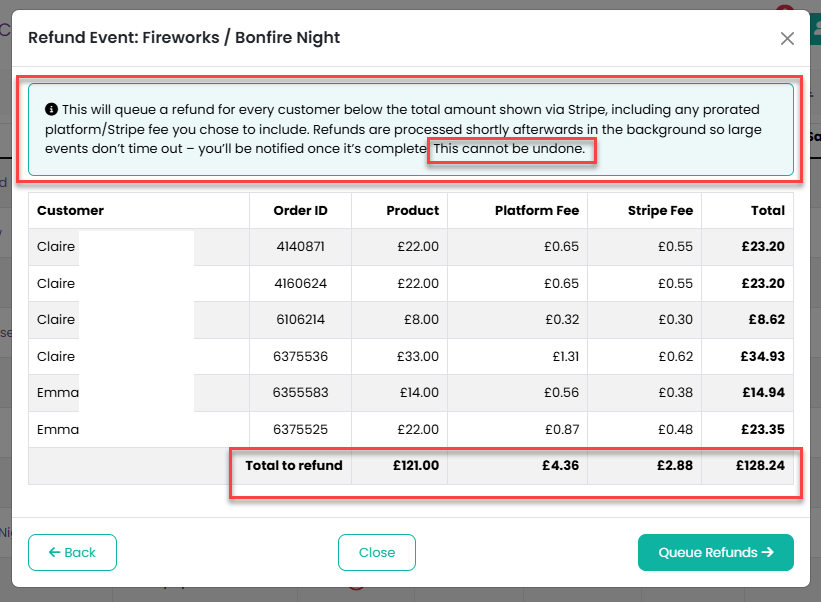
If you are happy with the refunds, click the Queue Refunds button. This won’t refund anything immediately. They are sent to a queue, which is processed in the background. Please note that this cannot be undone. You will be notified once all refunds have been completed.
All items in the order are automatically returned to stock and become available for purchase again.
If you only wish to refund certain customers, please click here for further information.
Was this article helpful?
That’s Great!
Thank you for your feedback
Sorry! We couldn't be helpful
Thank you for your feedback
Feedback sent
We appreciate your effort and will try to fix the article