Categories are managed under Finances > Categories. Each category has a menu with Edit, Transactions (everything recorded against it), Close or Reopen, and Delete.
Adding a category
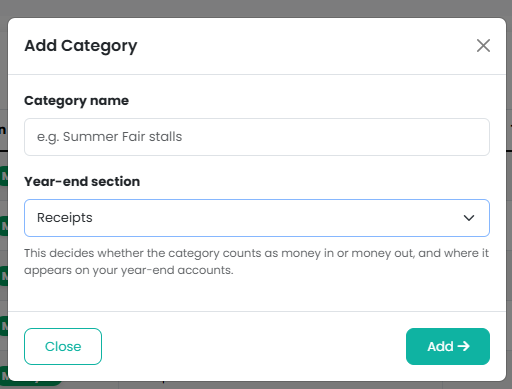
- Open the Manage menu and choose Add Category
- Give it a name
- Choose the Year-end section, which also decides whether it is money in or money out
- Save
Renaming
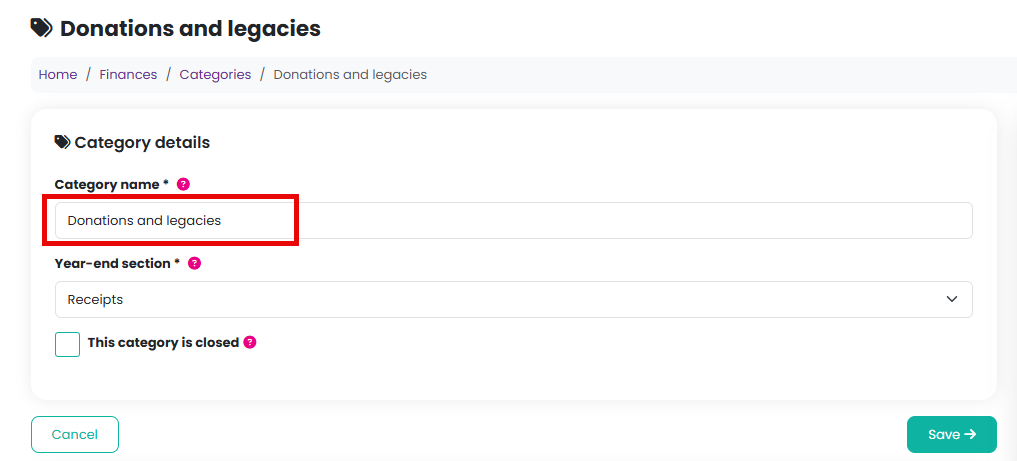
Always safe. Choose Edit, change the name and click on the Save button. It does not move any money; it only changes the wording on your reports.
Closing
Close a category you will not use. It keeps its history and its figures still report, but it is no longer offered when you record a transaction and it drops off the Budgets page. Card takings that would have been coded to it still are, so closing "Ticket sales" does not stop ticket income being recorded correctly. Choose Reopen to bring it back.

Deleting
Only possible while a category has never been used. Once transactions are recorded against it, it has to stay so those figures still have somewhere to report. Rename it instead, or recode the transactions first.
Deleting a category also removes any budget figures set against it.
Related reading
Was this article helpful?
That’s Great!
Thank you for your feedback
Sorry! We couldn't be helpful
Thank you for your feedback
Feedback sent
We appreciate your effort and will try to fix the article