Yes. If you have a long list of auction lots, you can add them all in one go from a spreadsheet instead of typing each one into the Add Auction form. This works for both standard and blind (silent) auctions.
Before you start
You need an event set up with auctions enabled and a payment processor connected, so that winning bidders can pay online. If you have not run an auction before, read Is it possible to run an online auction? first.
Download the template
- Go to Admin > Events.
- Find your auction event and choose Auctions from its Manage menu.
- On the Auction Lots page, choose Bulk Upload Auctions from the Manage menu.
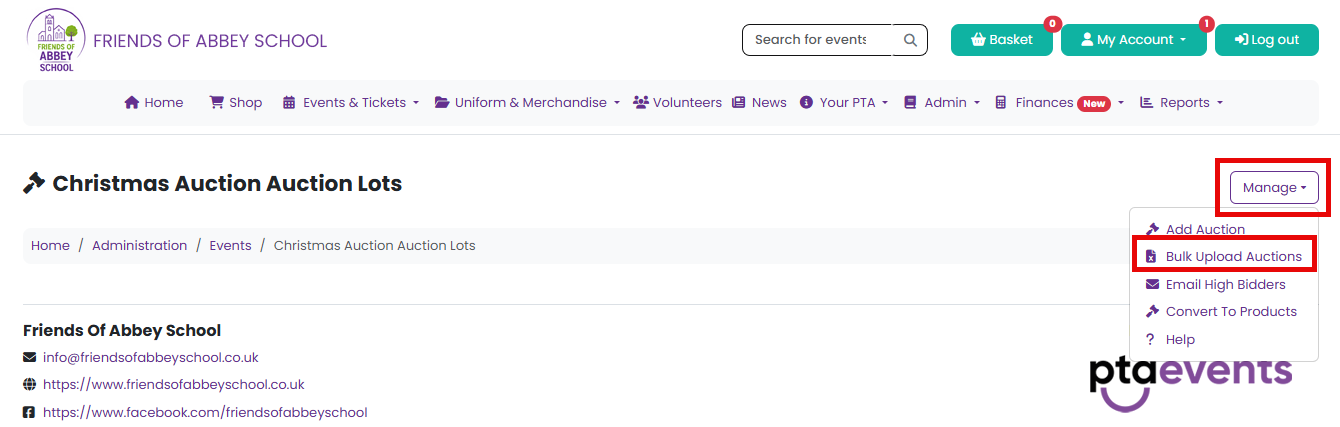
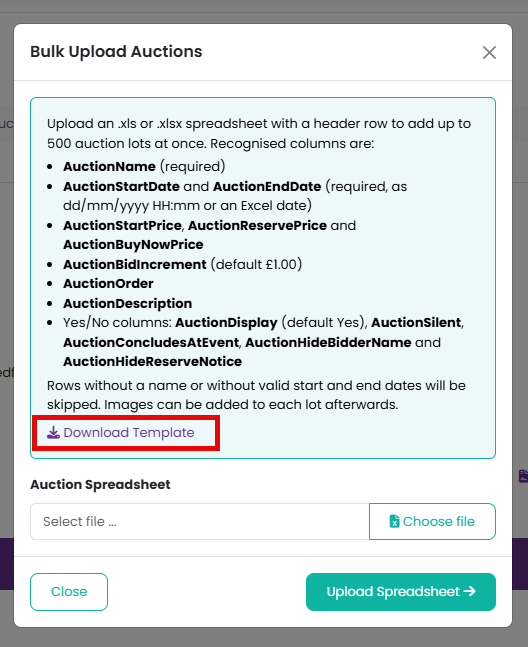
4. Click Download Template. The template already has the correct column headings and a few example rows that you can overwrite or delete.
Fill in your spreadsheet
Keep the headings in the first row exactly as they are. Each row below is one auction lot. The columns are:
- AuctionName - the name of the lot. Required.
- AuctionStartDate and AuctionEndDate - when bidding opens and closes, including the time, for example 01/11/2026 09:00. Required. The end date must be after the start date.
- AuctionStartPrice - the opening price.
- AuctionReservePrice - the lowest bid you will accept.
- AuctionBuyNowPrice - leave as 0 if you do not offer a buy now price.
- AuctionBidIncrement - the amount each bid must go up by. Leave blank for 1.00.
- AuctionOrder - the position in your listing. Leave blank and lots are added to the end in the order they appear in the spreadsheet.
- AuctionDescription - a description of the lot.
- AuctionDisplay - Yes or No. Leave blank and the lot is shown on your website.
- AuctionSilent - Yes for a blind auction where bids are sealed.
- AuctionConcludesAtEvent - Yes if bidding will finish in the room at your event.
- AuctionHideBidderName and AuctionHideReserveNotice - Yes or No.
Rows without a name, or without valid start and end dates, are skipped. You can upload up to 500 lots in one file.
Upload the spreadsheet
- Save the file as .xlsx or .xls.
- Back on the Auction Lots page, choose Bulk Upload Auctions from the Manage menu.
- Click Choose file and select your spreadsheet.
- Click Upload Spreadsheet.
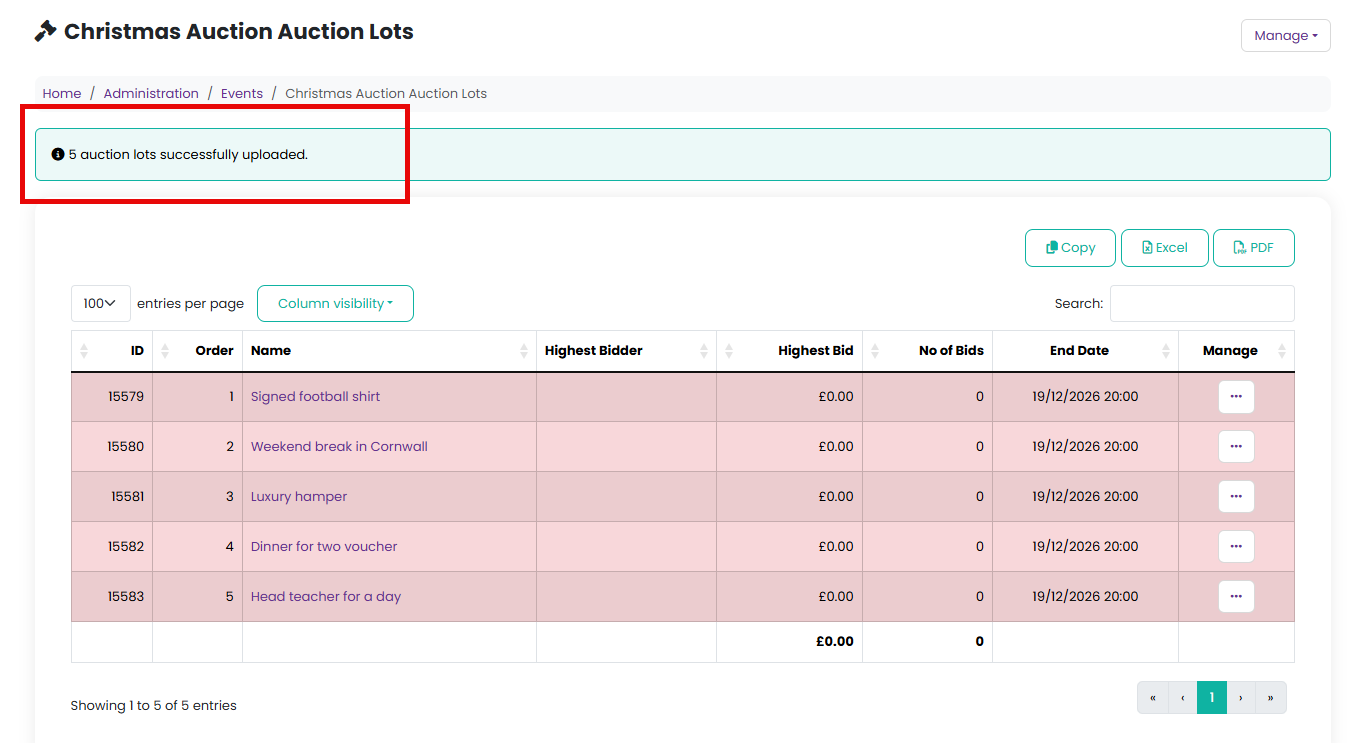
A message at the top of the page tells you how many lots were added and how many rows were skipped. If a row was skipped, check its name and dates, correct the spreadsheet and upload only the rows that are still missing.
Adding images
The spreadsheet cannot carry pictures. Once your lots are uploaded, click a lot's name to open it and add an image, then click Update Auction. You can also drag and drop rows in the table to change the order.

You may also like to read
Was this article helpful?
That’s Great!
Thank you for your feedback
Sorry! We couldn't be helpful
Thank you for your feedback
Feedback sent
We appreciate your effort and will try to fix the article