Desktop View:
Mobile View:
If your PTA Events, Clubs Hub, or Charity Hub website currently displays an event as the home (default) page, you can easily change this. You may either select another existing page on the platform or create a new page and set that as your default.
To Remove the Existing Event as the Default Page
Go to Admin > Settings.
Open the Basic Details tab.
Scroll down to the Default page field.
Here, you’ll see the current event ID that is set as your homepage.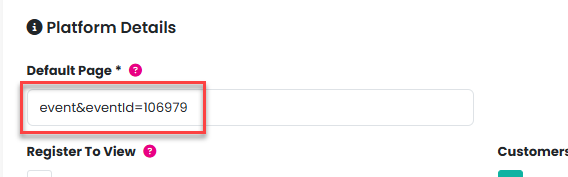
Set the Standard Default Page
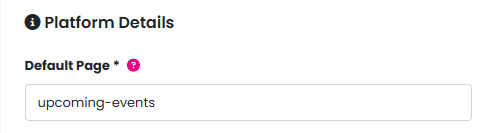
To revert to the standard homepage, change the value in the Default page field to:
upcoming-events
Set a Different Page as the Default (Optional)
If you’d like to display a different page instead:
In a new tab or window, navigate to the page on your PTA Events, Clubs Hub, or Charity Hub website that you want to use as the default.
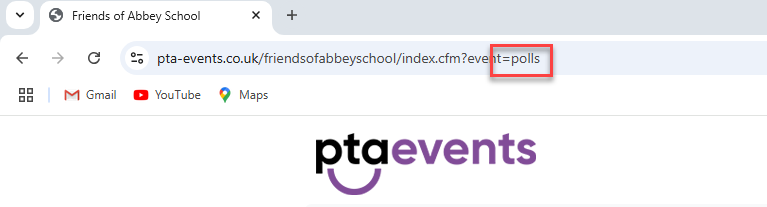
Look at the address bar and copy the value of the
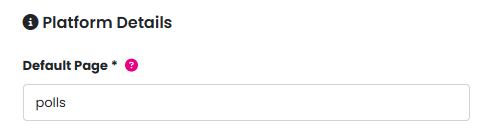
eventparameter (for example,polls).Paste this value into the Default page field in Admin > Settings.
Save Your Changes
Scroll to the bottom of the page and click Update to ensure your changes are saved.
Was this article helpful?
That’s Great!
Thank you for your feedback
Sorry! We couldn't be helpful
Thank you for your feedback
Feedback sent
We appreciate your effort and will try to fix the article