You can add payment schemes to products of type Membership, Subscription and Recurring Donation.
To do this, select Products from the Manage menu of the relevant product group:

Then select Add Product from the Manage menu:

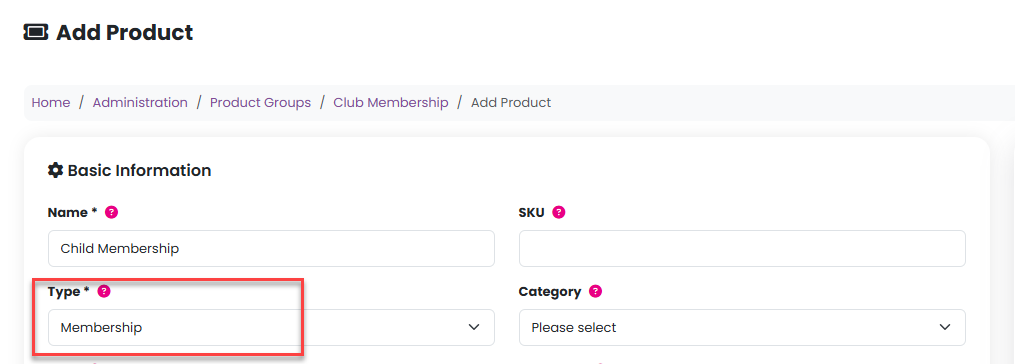
You can then give the product a Name, a SKU (or one will be allocated for you), and then you must either select Type Membership or Subscription in order to create a payment scheme:
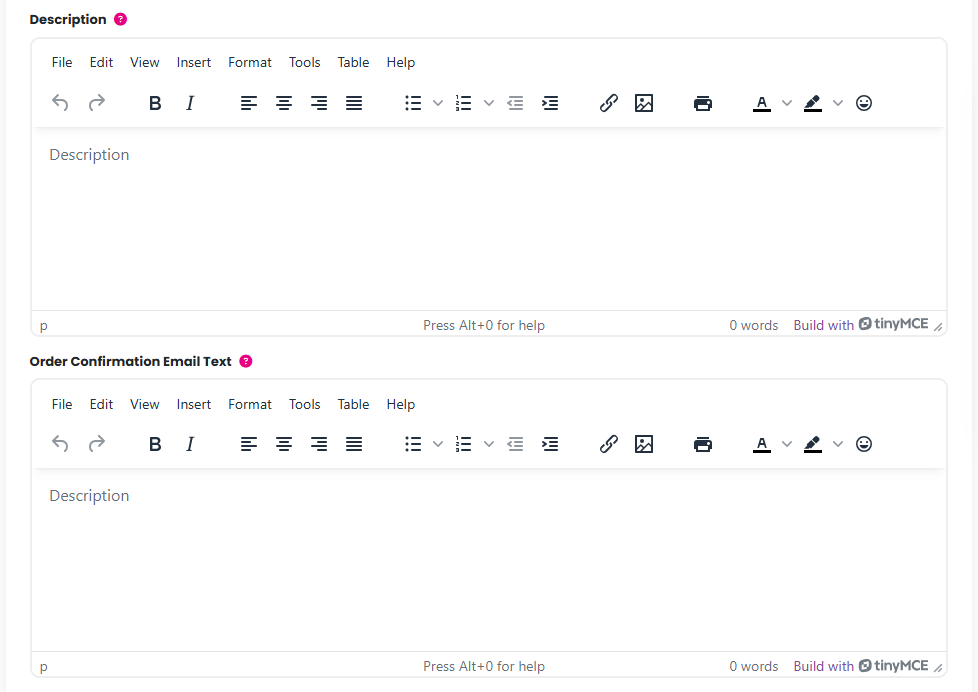
You can add a description in the free text Description field and any text you would like to add in the Order Confirmation Email Text field for this particular product. Please note that any text entered in the order confirmation email text in the product group will also be included, so there is no need to repeat that here:
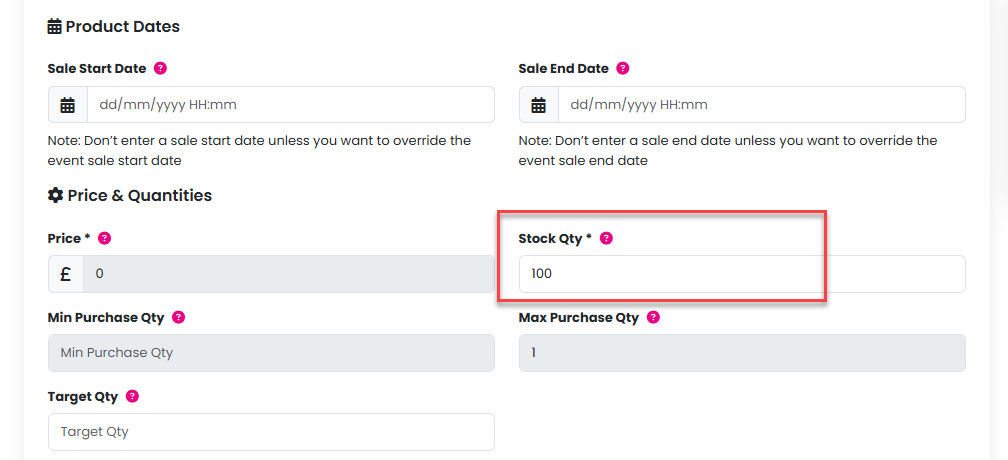
If you would like the Sales Start and End Dates for this product to override the dates set at product group level then please enter those here. If not, then these can be left.
There is no need to enter a Price or Minimum and Maximum Purchase Quantities but you must enter a Stock Quantity and you can enter a Target Quantity if you wish:
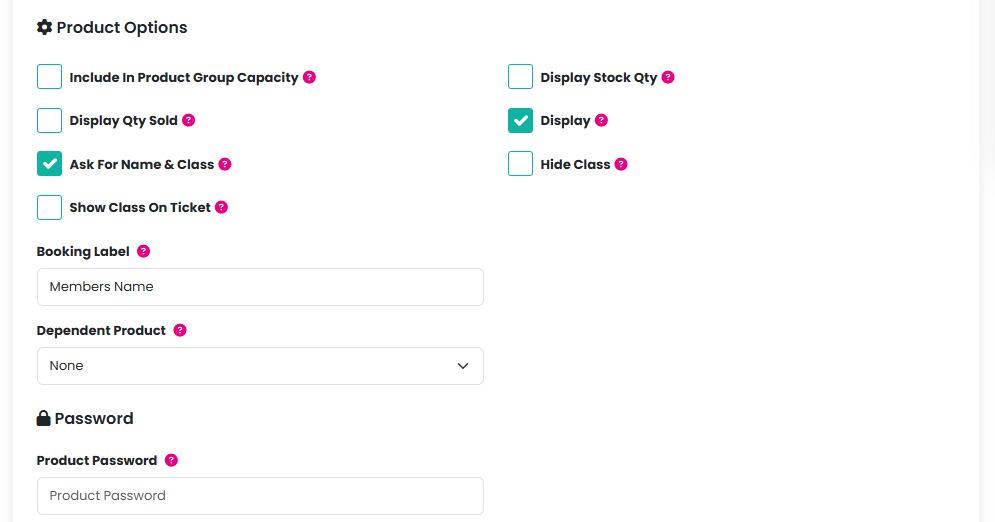
You can then check any required checkboxes in the Product Options section, decide how you would like the Booking Label to appear at checkout, and make any other product dependent on this product being purchased:
If you want to sell the product to specific Classes or Groups you can select them here, and you can add an Image for your product:
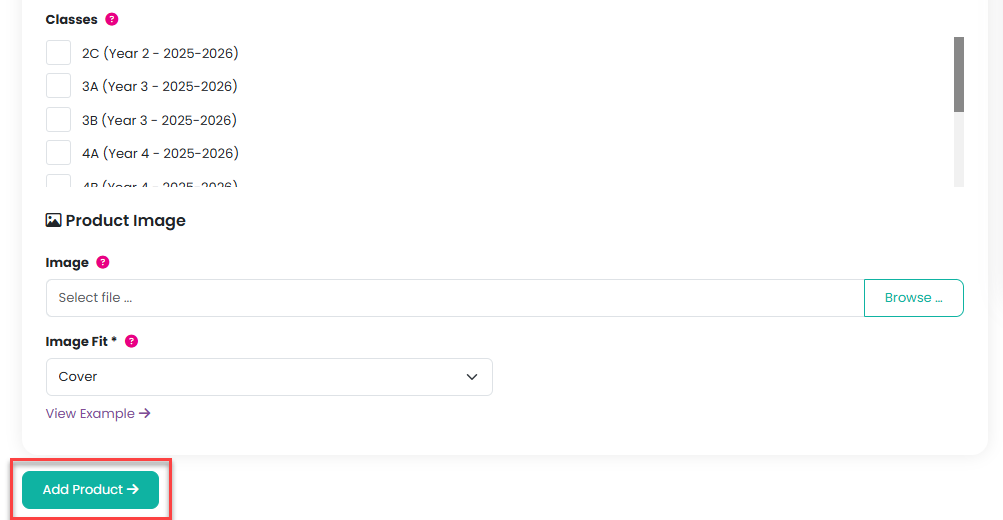
When you are ready, click on the Add Product button.
Once this has been completed, select Payment Schemes from the Manage menu of the newly created product:
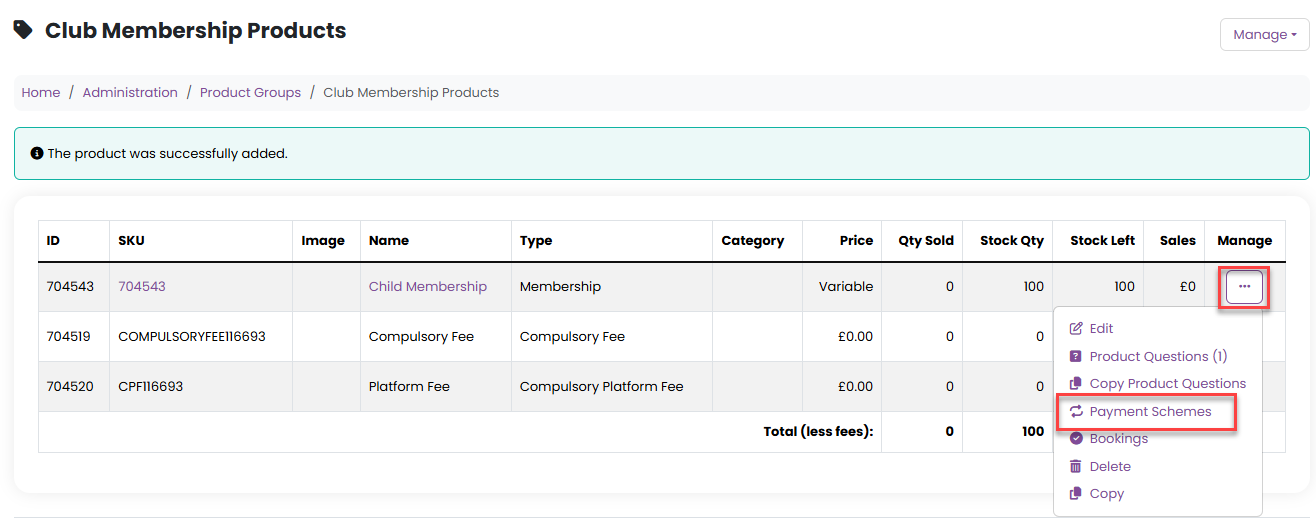
And then select "Add Payment Scheme" from the Manage menu:

Then enter the Amount, select a Frequency from the dropdown list, enter the Number of Payments and check the Auto Renew checkbox if you would like the Membership/Subscription to auto renew:
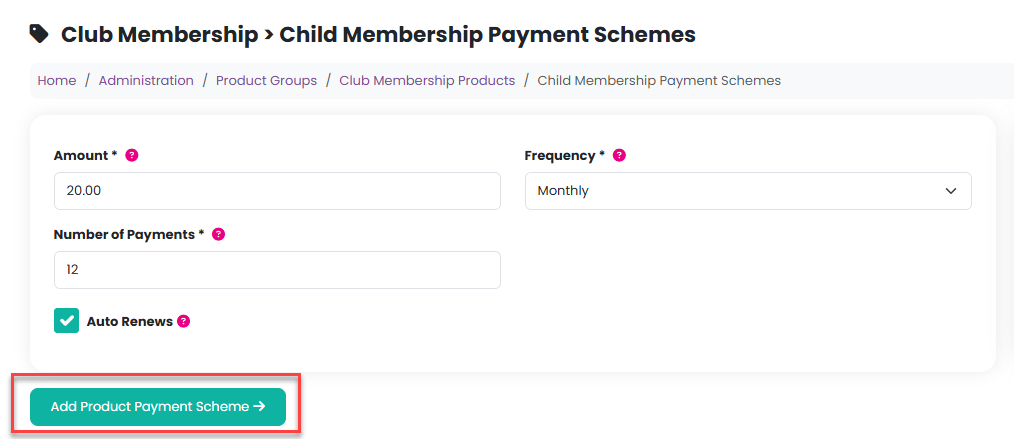
Then click on the Add Product Payment Scheme button.
You can add more payment schemes if you would like to offer different payment options to your customers:
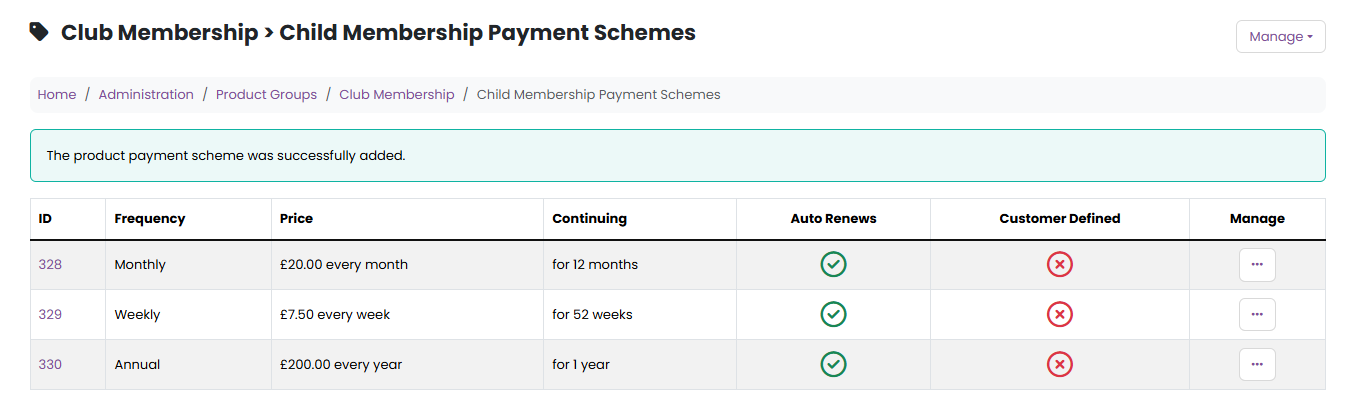
The options will show in the Uniform & Merchandise/Events & Sales page as:
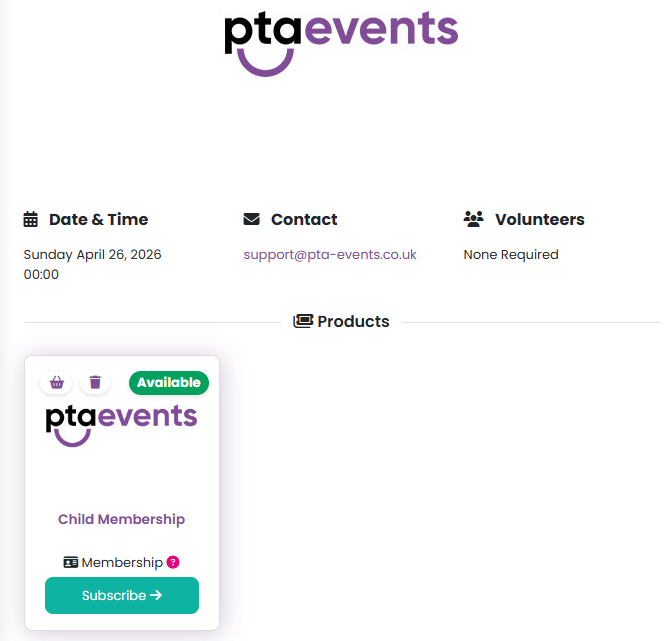
The payment schemes will be visible to your customer when they click on the Subscribe button:
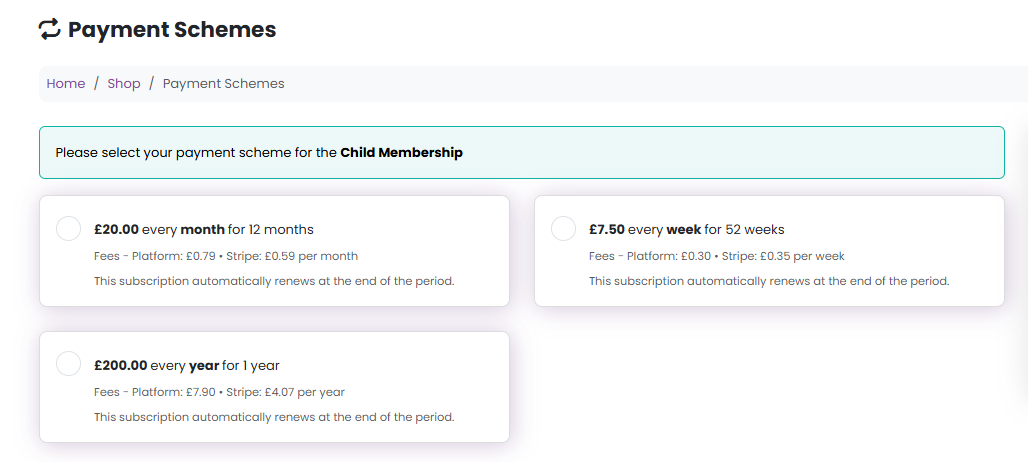
In order to set up a payment scheme for a subscription or a membership you first need to create a product group. Please click here for further information on how to do this.
Was this article helpful?
That’s Great!
Thank you for your feedback
Sorry! We couldn't be helpful
Thank you for your feedback
Feedback sent
We appreciate your effort and will try to fix the article