You can encourage your community to support you by displaying a donation message across your website, allowing customers to make either one-off or recurring donations.

Enabling donations
To activate donations on your site:
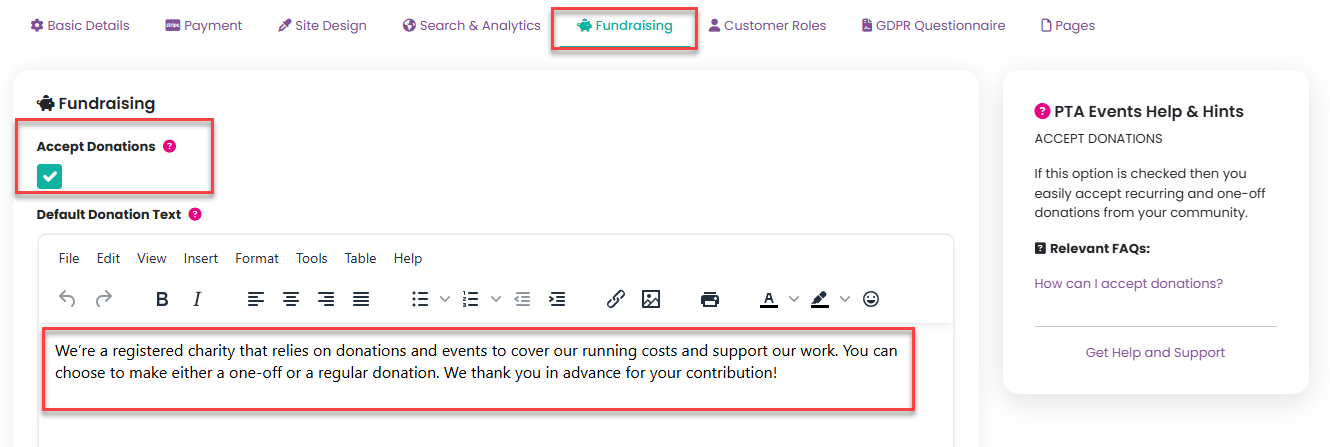
- Go to Admin > Settings
- Open the Fundraising tab
- Check the Accept Donations option
- Check the Default Donation Text which can be amended as appropriate.
Once enabled
- A donation message will appear at the top of all customer-facing pages.
- A dedicated product group is automatically created, including:
- Donation (one-off)
- Recurring Donation
Recurring donation payment schemes are created automatically and cannot be edited. If a customer enters a custom donation amount, a corresponding payment scheme will be generated automatically.
Customer donation experience
When a customer clicks Donate Now, a pop-up window will display available donation options:
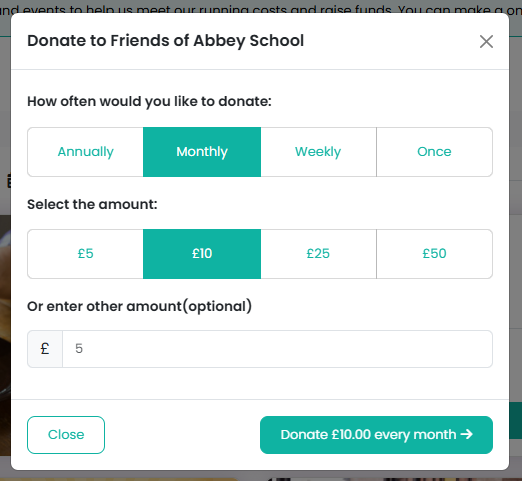
One-off donations
Customers can select or enter an amount and proceed directly to checkout.
Recurring donations
If a recurring donation is selected:
- The customer completes the checkout process
- They must agree to the Recurring Donation terms
- A payment schedule is automatically set up via Stripe for future payments
If your organisation is a registered charity and your Charity Commission number is added in site settings:
- Customers will be prompted to complete Gift Aid during checkout
- If not, this step is skipped
Note: If a recurring donation is in the basket, no other products or tickets can be added.
Managing donations (Customers)
Customers can manage their donations through their account.
- Go to My Account > Subscriptions
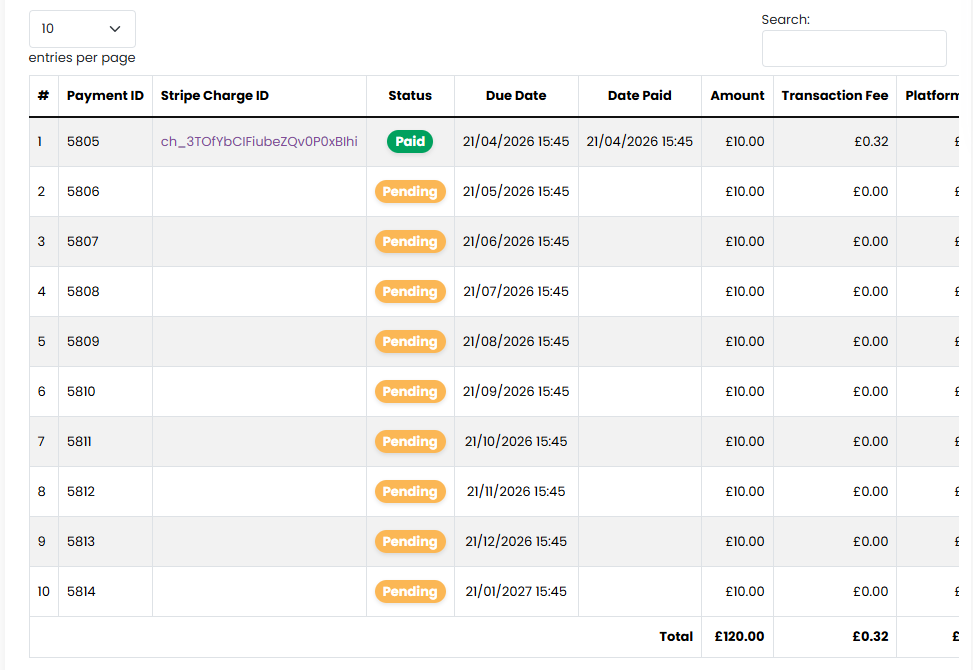
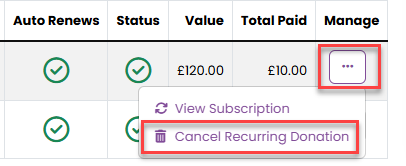
- Subscription information, including schedule of payment, can be viewed via the Manage menu or by clicking on the Subscription ID

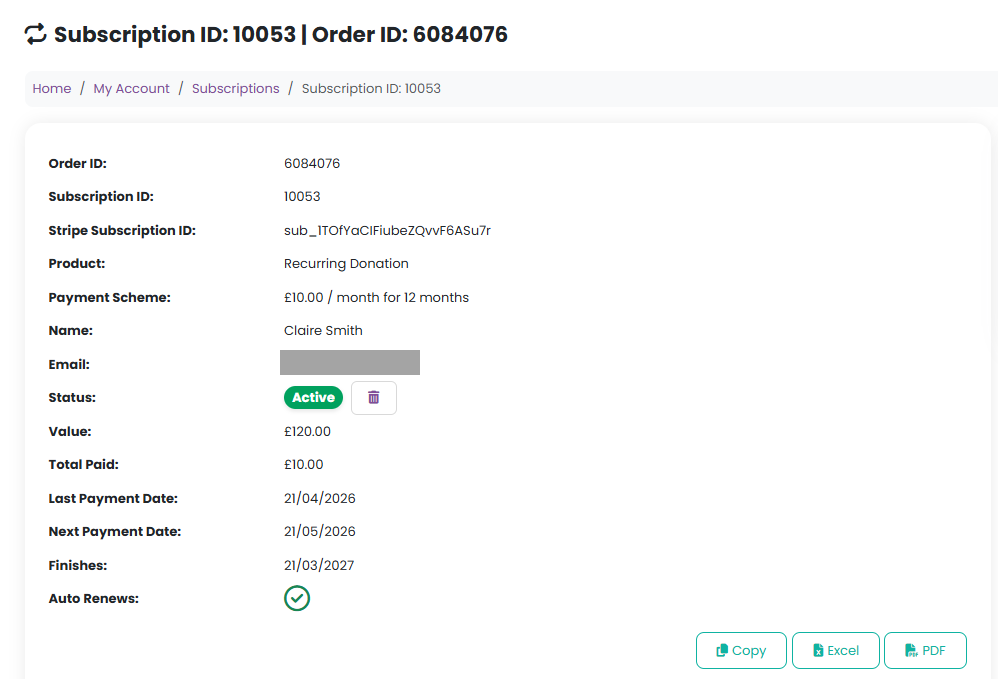
To cancel a recurring donation, customers can:
- Use the Manage menu, or
- Click on the Subscription ID and then on the Bin icon
A modal window will appear for confirmation:
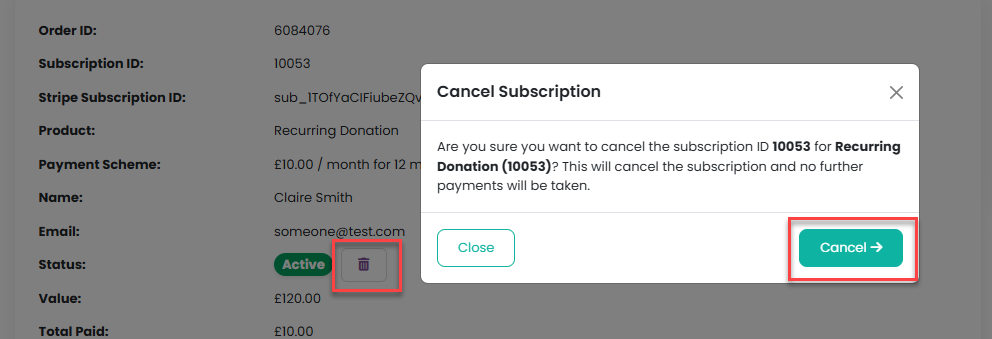
When a recurring donation is cancelled, an email notification is sent to the product group organiser, if BCC Order Confirmation has been checked in the product group.
Viewing and exporting donations (Admin)
To monitor donations:
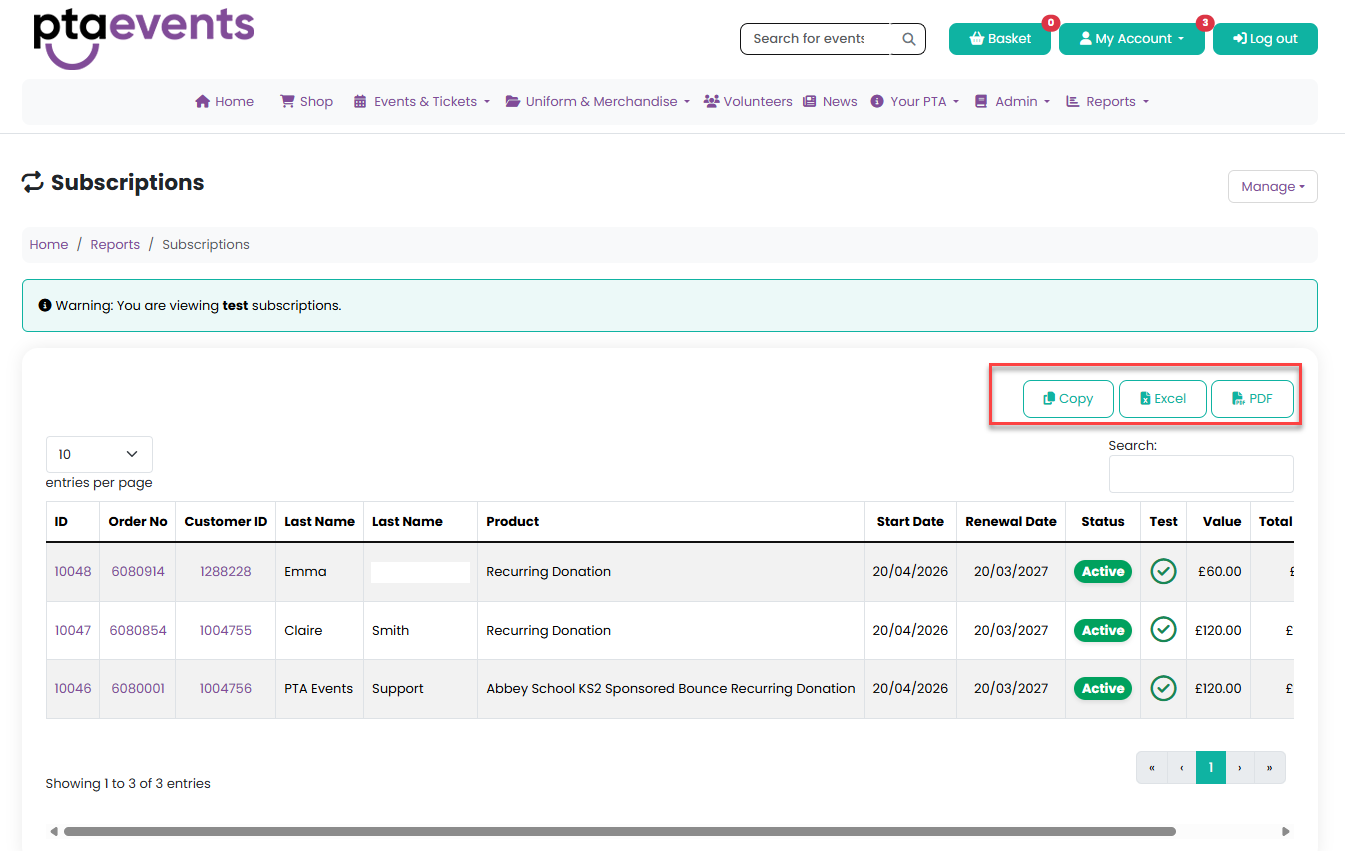
- Navigate to Reports > Subscriptions
- Use the search and filter options in the Manage menu

You can export donation data for further analysis off platform, if required:
- Excel
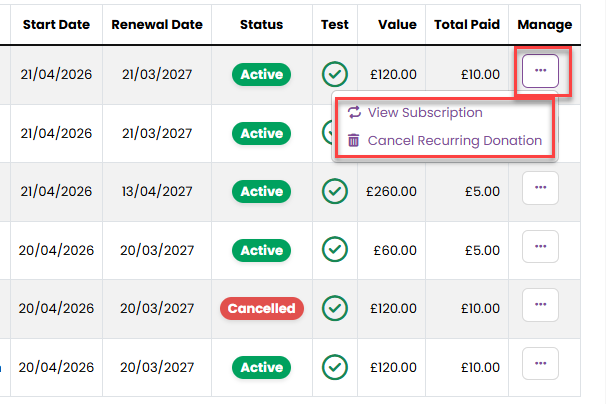
Subscriptions can be viewed and cancelled via the Manage menu:
Was this article helpful?
That’s Great!
Thank you for your feedback
Sorry! We couldn't be helpful
Thank you for your feedback
Feedback sent
We appreciate your effort and will try to fix the article