You can offer instalment payments for your event by setting up multiple products with staggered sales dates. The example below assumes a Ball taking place at the end of April, with tickets priced at £65.
Step 1: Create the Event
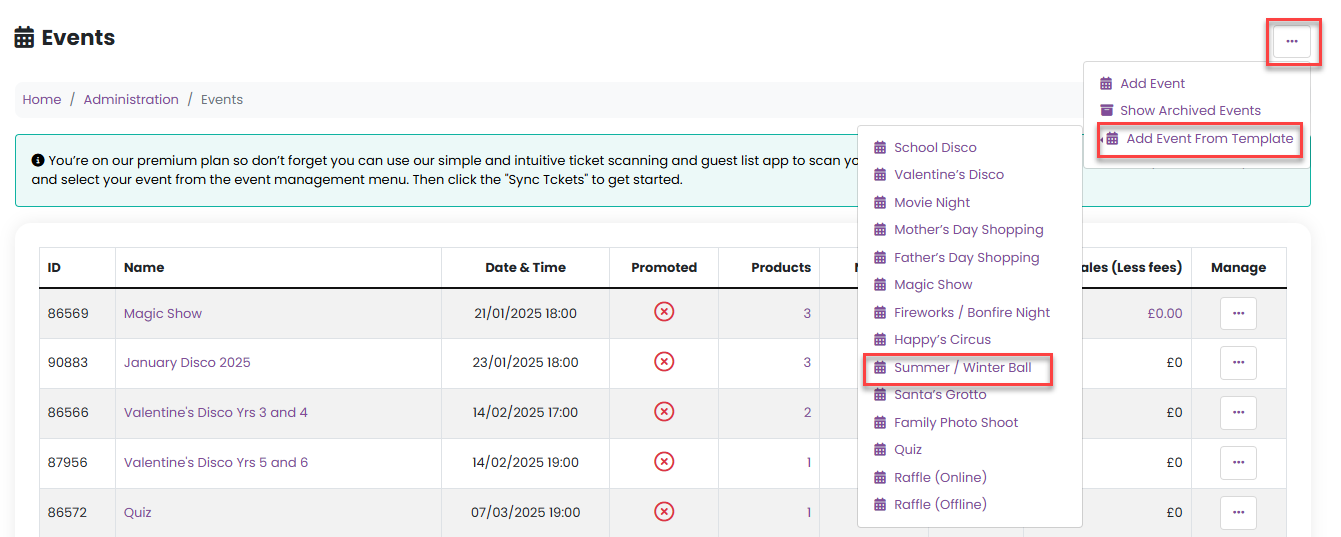
Go to Admin > Events.
From the Add Event From Template dropdown in the Manage menu, select Summer/Winter Ball.
Complete the steps in the template wizard:
Enter the basic event information including the name, dates and select the fee types
Enter ticket price and quantity - enter the full price ticket price for this option
Enter booking information - you can capture the menu choices for your event at this stage or add them later
Enter the quantity of volunteers you need to run the event
Further information on adding events from template can be found here
Step 2: Set Up Instalment Products
Once your event is created, set up the instalment products as follows.
1. Create the Deposit Product
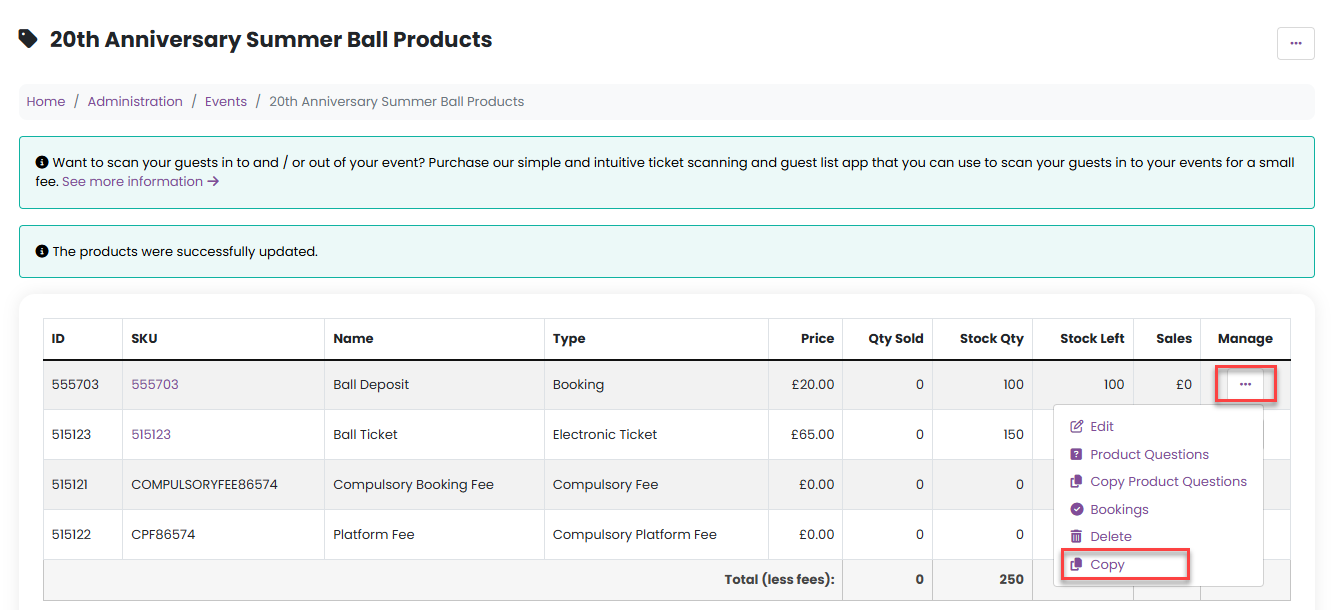
Go to Manage > Tickets/Products for the event.
Amend the name of the created product to Ball - Full Ticket Price.
Copy this (via the Manage menu) and call the copied product Ball - Deposit.
Amend product type to Booking
Price: £20
Sales dates: Now until 1st March
This product allows guests to secure their place with an initial deposit.

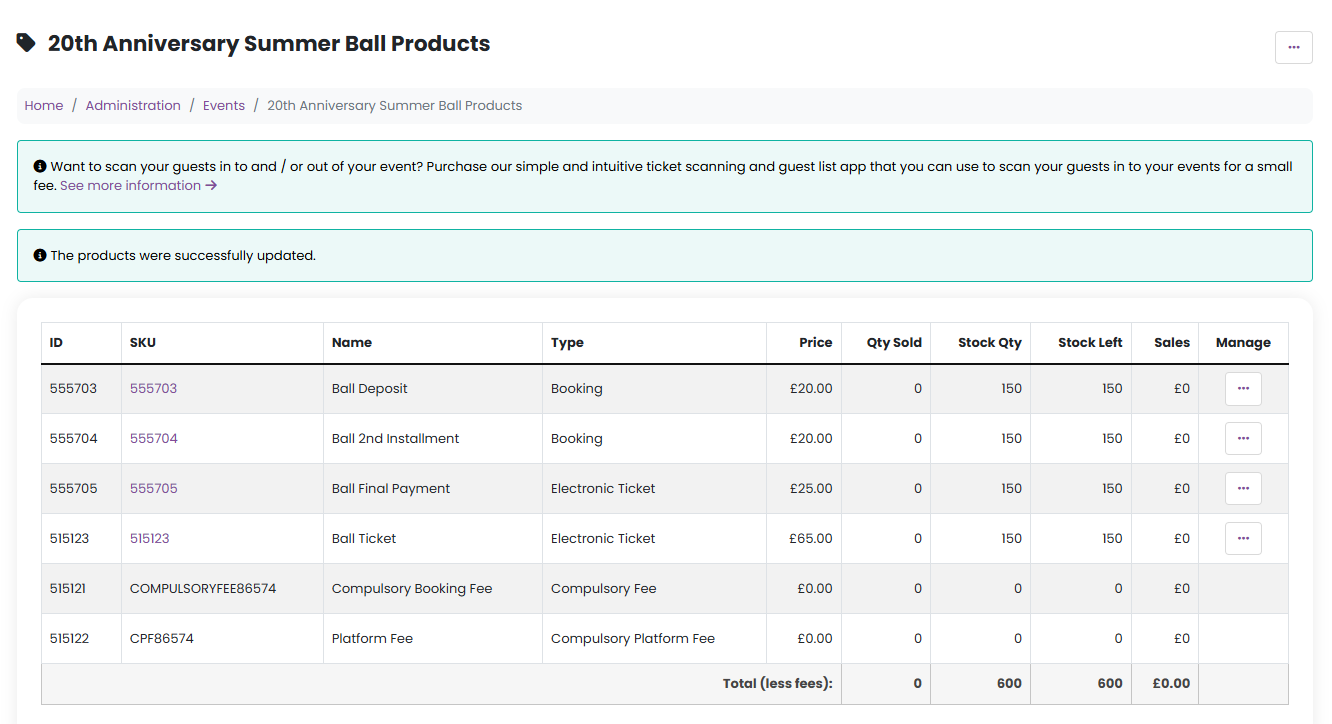
2. Create the Second Instalment Product
Copy the Ball - Deposit product.
Rename it Ball - Second Instalment.
Price: £20
Sales dates: 1st March until 1st April
This ensures the second payment is only available once the deposit window has closed.
3. Create the Final Payment Product
Create a new product called Ball - Final Payment.
Product type: Electronic Ticket
Price: £25
Sales dates: 1st April until Mid-April when sales close
This product can include questions, allowing you to collect important information such as menu choices and table names. Click here for further information on how to add these.
This gives your community the flexibility to either pay in instalments or pay in full at the point of purchase.
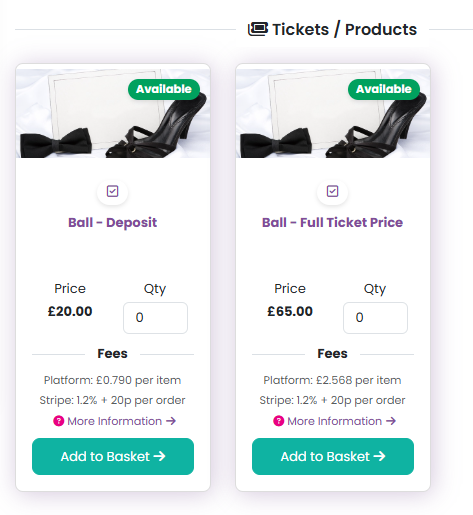
In your Shop or Events & Tickets page, only the deposit and full ticket price options should be visible now:
Step 4: Communicate with Attendees
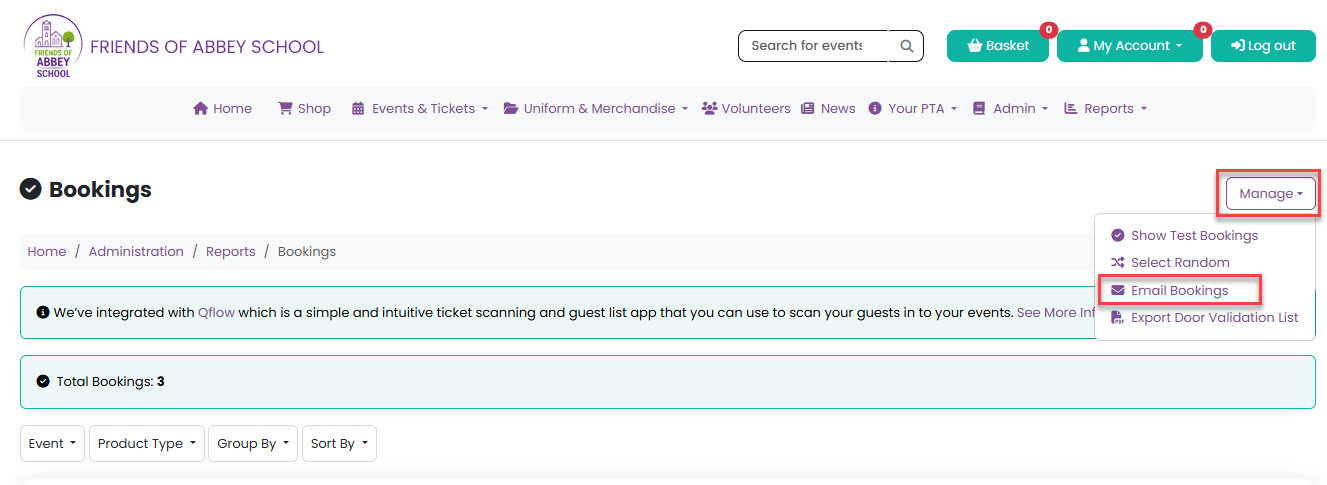
At each stage, you can use the Bookings Report to contact guests who have purchased the deposit and remind them when the next instalment is due:
Go to Reports > Bookings.
Select your event from the Events dropdown.
Use Email Bookings from the Manage menu in the report to email relevant attendees about upcoming payments.
Was this article helpful?
That’s Great!
Thank you for your feedback
Sorry! We couldn't be helpful
Thank you for your feedback
Feedback sent
We appreciate your effort and will try to fix the article