We've made several improvements to how your event tickets sync with Qflow, the app you use to scan guests in at your events.
Here's what's changed:
New: Automatic Ticket Syncing
You can now turn on automatic syncing so your tickets keep syncing to Qflow in the background, without needing to click Sync Data yourself every time someone buys a ticket.
To turn it on, go to Administration > Settings > Basic Details and look for Qflow Automatic Sync under Site Options.
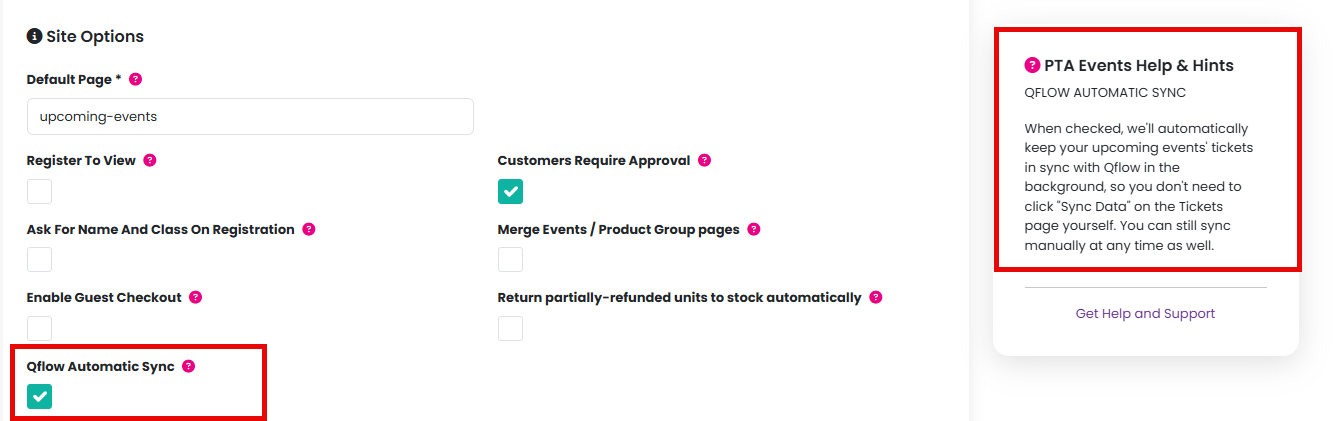
You can still use the manual Sync Data button under Reports > Tickets at any time as well, whether or not automatic syncing is switched on.
New: Control Over Organiser Re-notification
When you manually sync your tickets, you'll now see a new option in the sync window: Also update event organisers' Qflow access and email them their login details. This is ticked by default.
If you just want to send new ticket data across without your event organisers receiving another login email, untick this box before clicking Sync Data. The very first time an event is synced, organisers are always set up regardless, since otherwise nobody would be able to scan tickets at all.
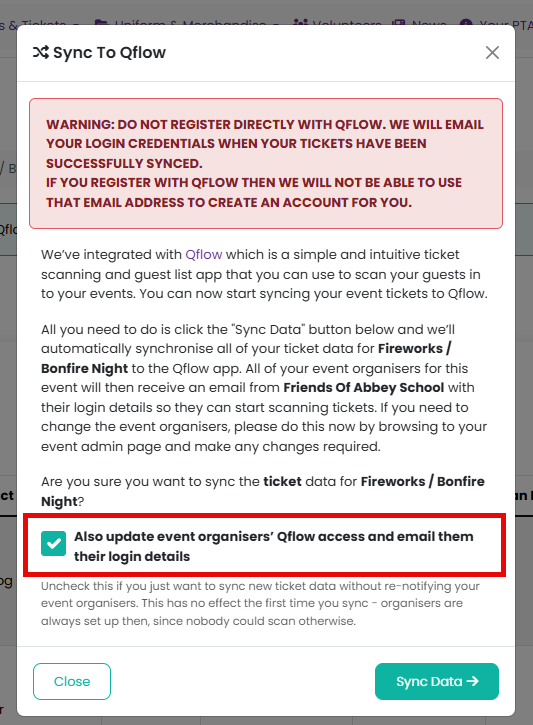
Automatic syncing never re-sends these emails on its own, so your organisers won't be contacted repeatedly just because syncing is happening in the background.
New: See Your Sync History
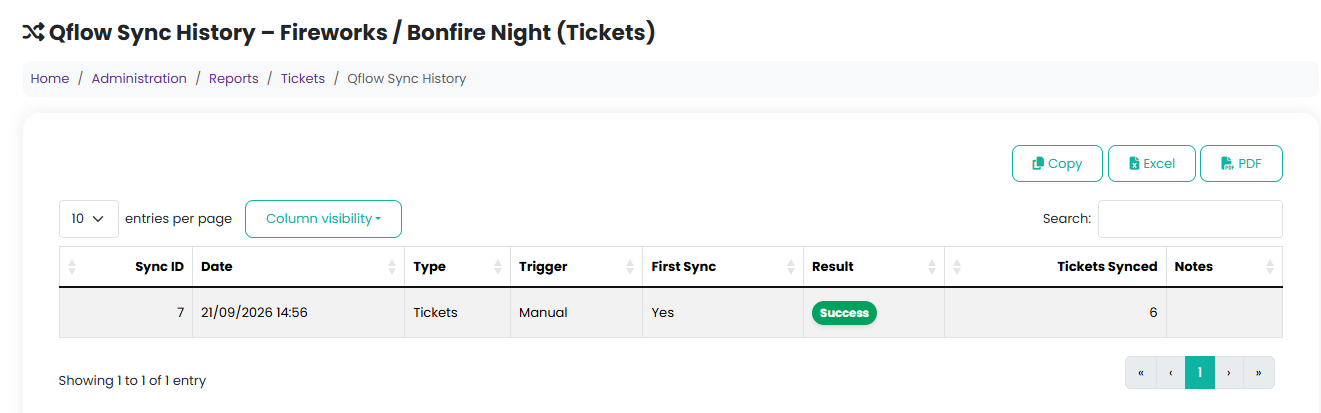
Every event now has a View Qflow Sync History link on its Reports > Tickets page, next to the "last synced on" message.

This shows a log of every sync for that event, including the date, whether it was manual or automatic, and how many tickets were sent across - handy if you want to check a sync has gone through.
New: More Ticket Types Can Be Synced
Chocolate / Wonky Bar Voucher products can now be synced to Qflow alongside your regular tickets, vouchers and boarding passes.
As always, please do not register directly with Qflow - all access is managed through your PTA Events account.
Related articles -
How do we integrate our event with Qflow?
Was this article helpful?
That’s Great!
Thank you for your feedback
Sorry! We couldn't be helpful
Thank you for your feedback
Feedback sent
We appreciate your effort and will try to fix the article