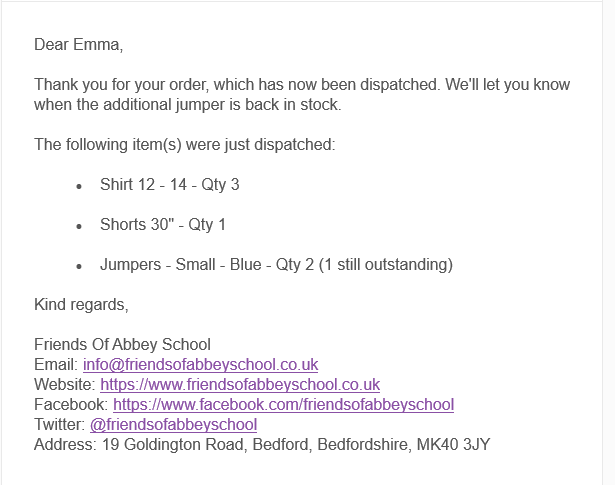
When you mark an order as dispatched, you can now attach a delivery note PDF to the email the customer receives. This gives them a printable summary of exactly what's been sent, alongside your usual dispatch message.
Dispatching a whole order
- Go to Reports > Orders
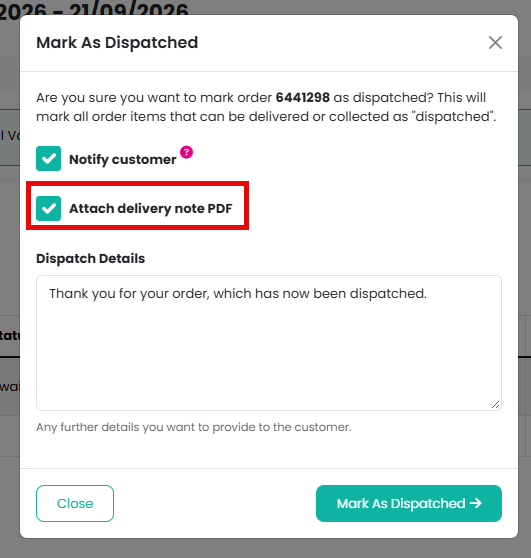
- Open the relevant order and select Mark as Dispatched from the order management menu
- Tick Attach delivery note PDF if you'd like a copy included with the notification
- Keep Notify customer checked, add any dispatch details, then confirm
Dispatching individual items
- Go to Reports > Orders
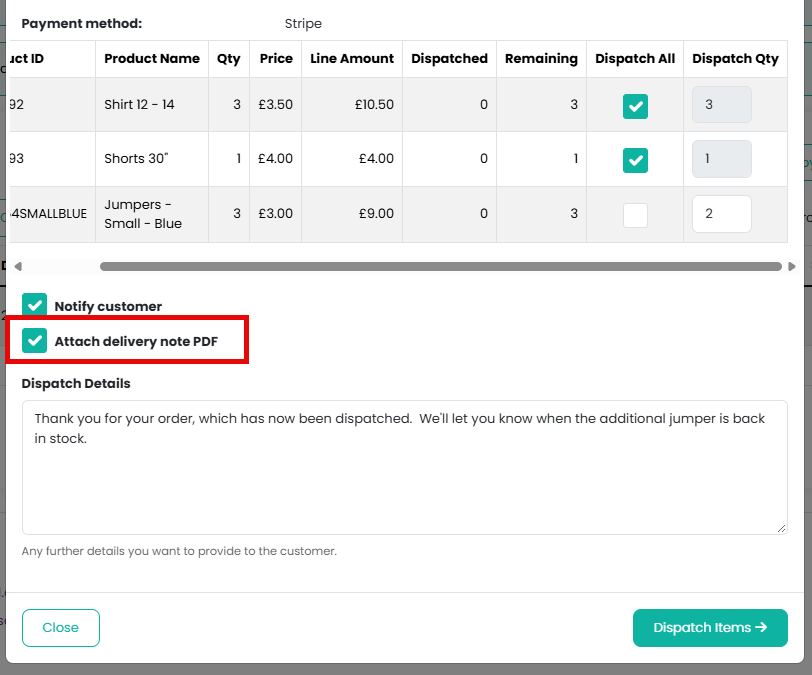
- Search for the order and select Dispatch Items from its menu
- For each item, tick Dispatch All or enter the quantity you're sending now
- Tick Attach delivery note PDF if you'd like a copy included with the notification
- Keep Notify customer checked, add any dispatch details, then select Dispatch Items to confirm
Example of Email content:
Example of Delivery Note PDF:
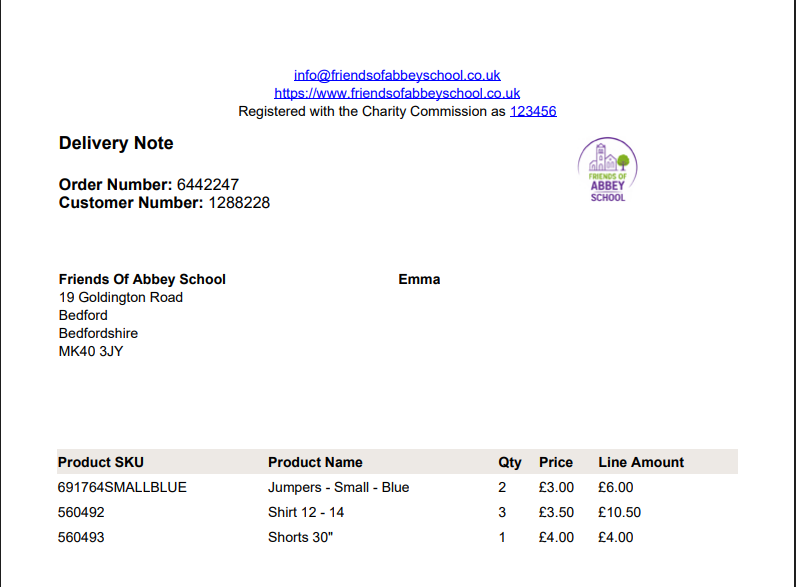
If you're only dispatching part of an order, the attached delivery note will only list the items and quantities you're sending in that batch, not the whole order - so a customer receiving 1 of 3 units will see a note for 1, with the rest following separately once dispatched.
The checkbox is unticked by default, so you'll only get a delivery note attached when you choose to include one.
Related articles
Was this article helpful?
That’s Great!
Thank you for your feedback
Sorry! We couldn't be helpful
Thank you for your feedback
Feedback sent
We appreciate your effort and will try to fix the article