If you only need to resend a confirmation email for a single order, see How can I re-send an order confirmation email? If you need to resend to several customers at once, for example after a venue or date change, you can do this from two places.
Option 1: Resend to selected orders
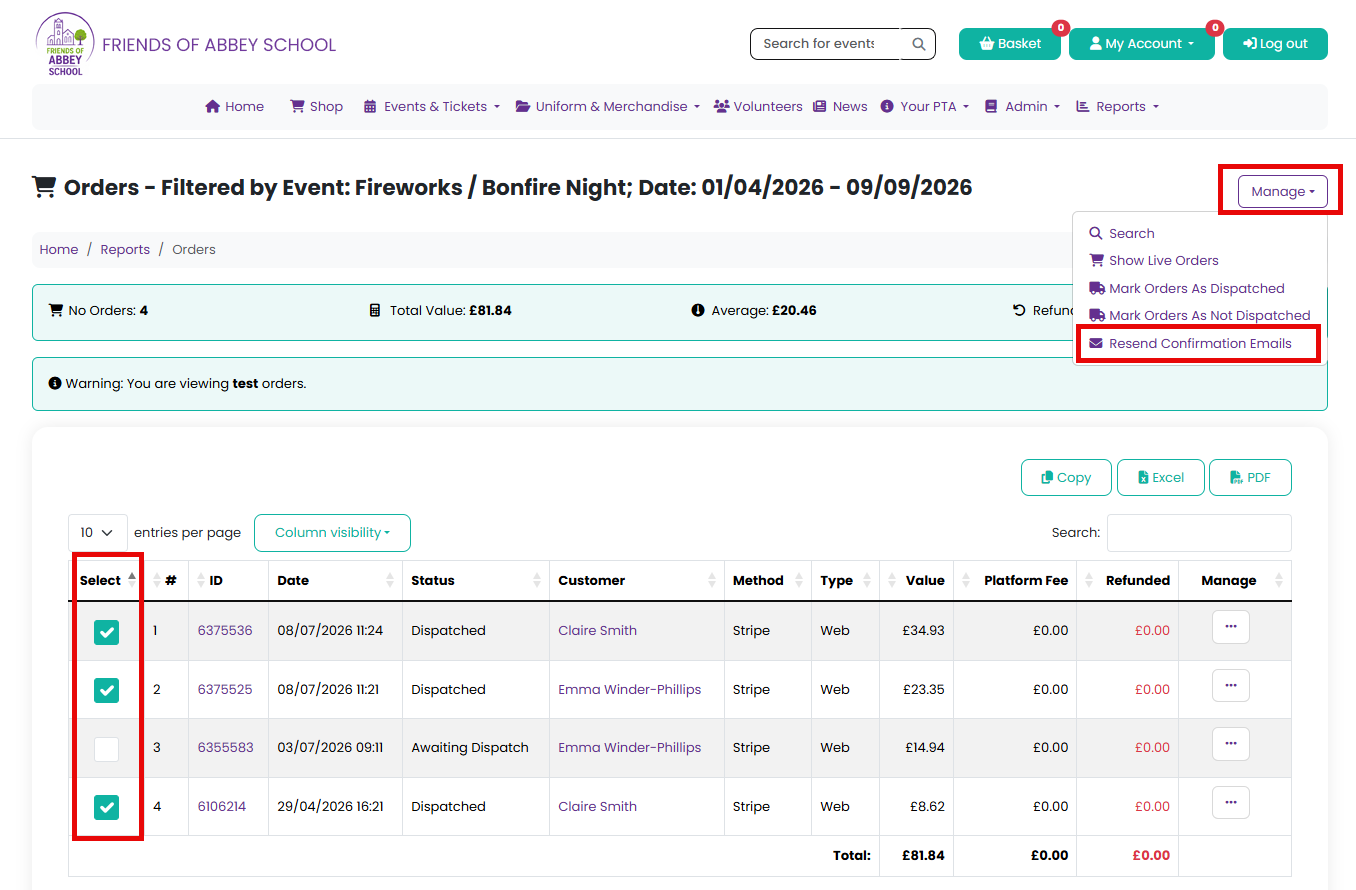
- Go to Reports > Orders
- Use the Search field in the Manage menu to locate the orders
- Tick the checkbox next to each order you want to resend a confirmation email for
- Select Resend Confirmation Emails from the Manage dropdown menu
- Confirm by clicking the Resend Confirmation Emails button
Option 2: Resend to everyone with a completed order for an event
Use this option if you want to resend to every customer who has a completed order for a specific event, without selecting orders individually.
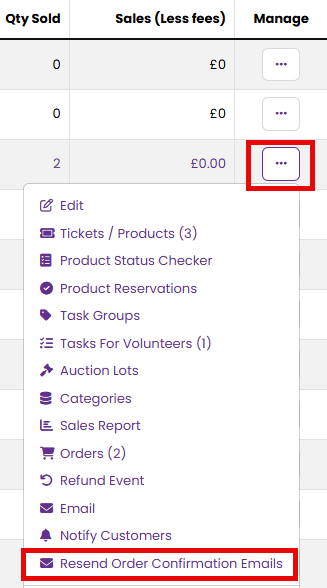
- Go to Admin > Events
- Locate your event in the list
- Click the Manage dropdown menu next to it and select Resend Order Confirmation Emails
- Confirm by clicking the Resend Confirmation Emails button
What to expect
These emails are sent in the background, so they usually arrive within a few minutes rather than instantly.
The resent email includes everything the original did - the ticket PDF, any calendar (.ics) attachments, and any event files that were attached to the original order confirmation. A short note is added near the top of the email to let the customer know it has been resent by your organisation.
Related articles
Was this article helpful?
That’s Great!
Thank you for your feedback
Sorry! We couldn't be helpful
Thank you for your feedback
Feedback sent
We appreciate your effort and will try to fix the article