Both the Dashboard and the Treasurer Dashboard are made of panels, and you can arrange them to suit the way you work. Nothing you do here changes anything for anyone else; it only changes how the page looks to you, in the browser you are using.
Moving a panel
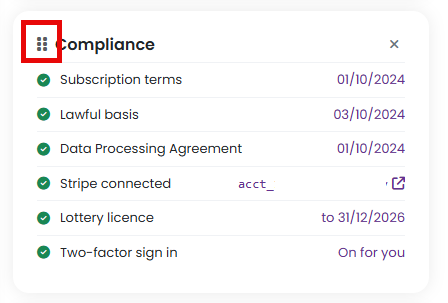
- Point at the panel's heading. The small grip icon to the left of the heading shows it can be dragged.
- Press and hold on the heading, then drag the panel up or down its column, or across into the other column.
- A dashed outline shows where it will land. Let go to drop it there.
The new position is saved straight away and the page opens that way next time.
Note: dragging needs a mouse or trackpad. On a phone or tablet the panels stack in one column and cannot be dragged, but you can still hide and show them.
Hiding a panel
Click the cross in the top right corner of the panel. It disappears, and a blue bar at the top of the page lists what is hidden.
Two panels behave a little differently:
- From PTA Events - the cross hides that one notice. The next notice we publish appears in the same place.
- Getting started - this panel removes itself once every step is complete, so there is usually no need to hide it.
Bringing a panel back
While anything is hidden, the blue bar at the top of the page names each hidden panel. Click a name to bring that panel back where it was.

Starting again
Click Reset layout in the blue bar. Every panel comes back in its original position and the page reloads. The bar only appears while something is hidden; if you have moved panels but hidden none, hide any panel for a moment to reveal the bar, click Reset layout, and everything goes back to the standard order.

Where the layout is kept
Your layout is remembered by the browser on the device you are using, separately for the Dashboard and the Treasurer Dashboard and separately for each person who logs in on that device. It is not stored on our servers, so:
- a different computer or browser starts with the standard layout;
- clearing your browser's site data puts the layout back to standard;
- a private or incognito window shows the standard layout and forgets any changes when it closes.
Related reading
Was this article helpful?
That’s Great!
Thank you for your feedback
Sorry! We couldn't be helpful
Thank you for your feedback
Feedback sent
We appreciate your effort and will try to fix the article