Your Dashboard is the first page you see when you log in as an administrator, and it is under Reports > Dashboard whenever you want to get back to it. It is built to answer three questions at a glance: is there anything I need to deal with, how are we doing, and what is on sale right now. Everything on it links through to the page where you can act.
Note: the Dashboard is open to administrators and to anyone with the Finance / Treasurer role. A few of the panels are for Administrators only, because they cover things only an Administrator can do; those are marked below. Treasurers also have their own Treasurer Dashboard under Reports.
The top of the page
Under the title is today's date, how many products are on sale and how many items need your attention. Below that is your organisation's Stripe account reference with a Copy link beside it. Stripe support and our own support team will ask for this reference first, so it is kept where you can find it without digging through settings.
Needs your attention
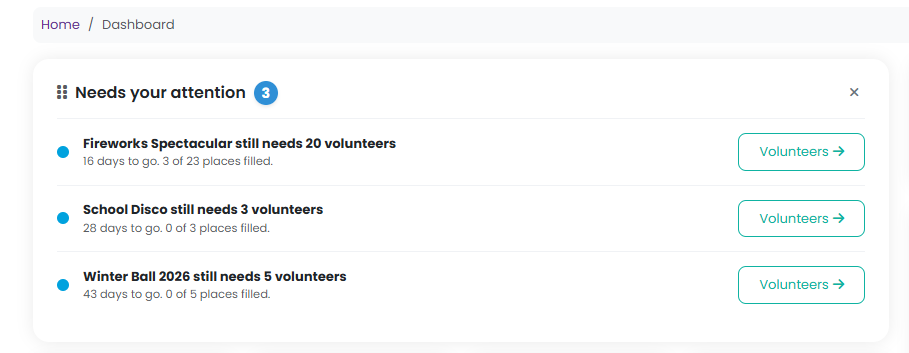
One list of everything that wants a decision or an action, most serious first, each with a coloured dot and a single button that takes you to the right place. A red dot is something that blocks selling or breaks a rule, amber is something that will become a problem if left, and blue is worth knowing. The first four are shown; Show more reveals the rest. When the list is empty the panel says so.
Things you may see here:
- Stripe needs information from you - Stripe has paused payouts or payments, or has information overdue. The button opens your Stripe dashboard.
- Products on sale that Stripe may restrict - raffles, prize draws, lotteries, 100 clubs and games of chance are on sale, but Stripe has not yet approved your organisation for them. Upload your Small Society Lottery Licence from the Payment tab in your Settings or via the Compliance tile.
- Sign the subscription terms, the Data Processing Agreement, or tell us your lawful basis - shown to Administrators only, because only an Administrator can sign.
- Connect your Stripe account - nobody can pay online until this is done.
- No classes for this academic year - products on sale ask for a class at checkout and there are none to choose from.
- Your lottery licence has expired, or expires within 30 days.
- Partial refunds to allocate - Stripe refunded part of an order and the refund has not yet been matched to a ticket or product.
- An event still needs volunteers - with how many days to go and how many places are filled.
- Bring in your committee - shown while you are the only person with access and no invitation is waiting.
The four figures
Four tiles for the last 30 days: Funds raised and Orders, each against the 30 days before them, New customers with your total, and your latest Stripe payout. The payout tile shows the amount, whether it is paid or on its way, and your payout schedule as it is set in Stripe, for example "Paid out weekly on Fridays, 7 day delay". Funds raised is the value of completed orders through your website.

On sale now
One card for each event or product group with something on sale. The card header shows the event name, its date and how many days are left, how many volunteer places are filled, and how much the event has raised so far. Coloured tags appear in the header when a product is nearly sold out, when stock is low, or when volunteers are still needed, so you can see at a glance which events need a look without opening them.
Click a card to open it. Inside is one line per product with a bar showing how much of the stock has sold - red when it is almost gone, amber when it is running low - the number left, and the money that product has raised. Along the bottom are links to the event's Products, Bookings, Sales, Product questions report and Volunteers.
Recent orders
The last ten orders, newest first, with the customer's name, the order number and how long ago it was placed. Click a name to open the customer, the order number to open the order, or All orders for the full Orders report.
Funds raised by month
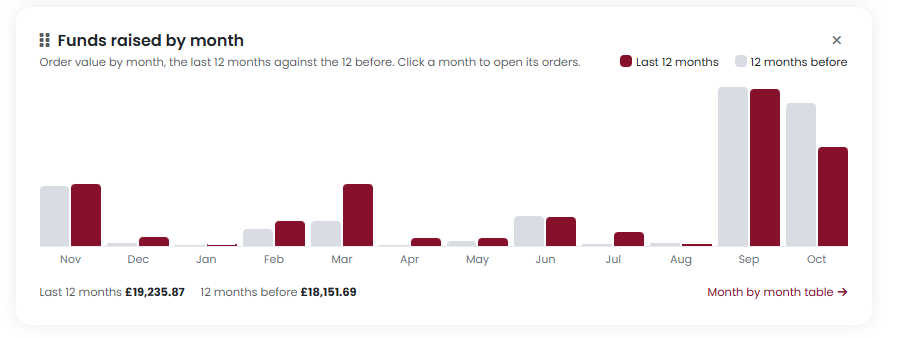
A bar for each of the last 12 months with the same month the year before shown in grey beside it, and the two totals underneath. Hover over a month to see both figures, click a month to open its orders, or click Month by month table for the figures as a table with the percentage change for each month.
The right-hand column
- From PTA Events - the latest notice from us, with a link to read it. The cross hides that notice only; the next one we publish appears in its place.
- Getting started (administrators) - the ten steps that get a new organisation running, ticked off as you complete them, with a link to the full guide. The panel disappears once every step is done.
- Your committee (administrators) - everyone who holds a role, what their roles are, and any invitation that has not yet been accepted, with a link to re-send it.
- Compliance - your subscription terms, lawful basis, Data Processing Agreement, Stripe connection, lottery licence and two-factor sign-in, each with a tick or a warning and a link on the right to the page that deals with it. The Stripe row carries your account reference and opens Stripe.
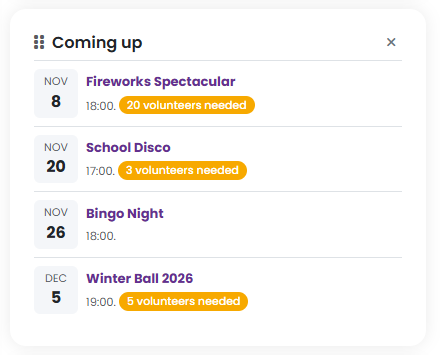
- Coming up - your next four events by date, with any volunteer shortfall.
- Your plan - which plan you are on and its fees. On the Starter plan there is an Upgrade to Premium link that explains the Premium plan and lets you switch.
Making it your own
Every panel can be dragged to a new position or hidden with the cross in its corner, and the page remembers your layout. See How do I move, hide or reset the panels on my dashboard? for the details.
Note: on a phone the columns stack one above the other, the figures are smaller and the event cards fold so the name, tags and money raised sit one under another. Hiding and showing panels works on a phone; dragging needs a mouse.
Related reading
Was this article helpful?
That’s Great!
Thank you for your feedback
Sorry! We couldn't be helpful
Thank you for your feedback
Feedback sent
We appreciate your effort and will try to fix the article