The Treasurer Dashboard, under Reports > Treasurer Dashboard, is the money picture of your organisation on one page: what needs the treasurer, how much has been raised, what Stripe has paid you, and - if you use Finances - where the money is and what it can be spent on. Anyone with the Finance / Treasurer role lands on it when they log in; administrators can open it too.
Note: the Finances panels appear only when Finances is switched on for your organisation and has been set up. Everything else on the page works whether or not you use Finances.
The top of the page
Under the title is today's date, the financial year you are in if one is set up in Finances, and how many items need your attention. Below that is your organisation's Stripe account reference with a Copy link, which is what Stripe support will ask you for.
Needs your attention
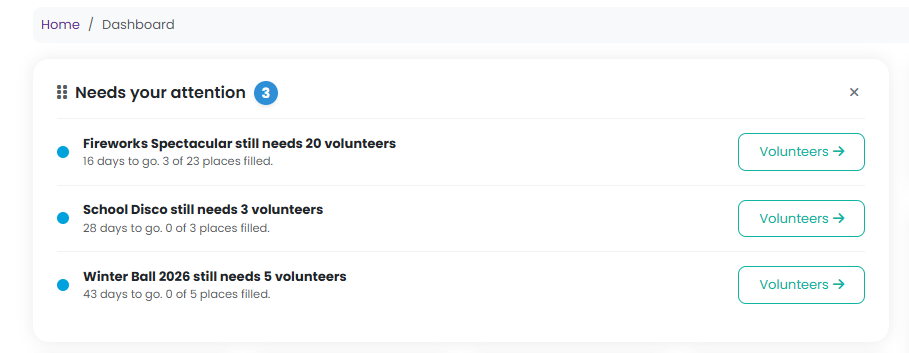
One list of everything waiting on the treasurer, most serious first, each with a coloured dot and one button. Red blocks something or breaks a rule, amber will become a problem if left, blue is worth knowing. The first four are shown and Show more reveals the rest.
- Stripe needs information from you - payouts or payments are paused, or Stripe has information overdue.
- Products on sale that Stripe may restrict - raffles, draws or games of chance are on sale before your lottery licence has been approved.
- Connect your Stripe account - the Finance / Treasurer role can do this from Settings > Payment.
- Expense claims waiting for approval and approved claims to pay.
- Bank lines not yet matched - lines on an imported statement that nothing in your records explains yet.
- Stripe payouts that could not be recorded in Finances. They are tried again automatically every hour.
- No open financial year - payouts cannot post to the ledger and there is no year end report without one.
- Set up Finances - shown when Finances is switched on but the ledger has not been initialised.
- Partial refunds to allocate, and a lottery licence that has expired or is about to.
The four figures
Funds raised and Orders for the last 30 days, each against the 30 days before. Your latest Stripe payout, whether it is paid or on its way, and your payout schedule as set in Stripe. And, when Finances is set up, Cash held across all your accounts with how much of it is unrestricted and free to spend.

Funds raised by month
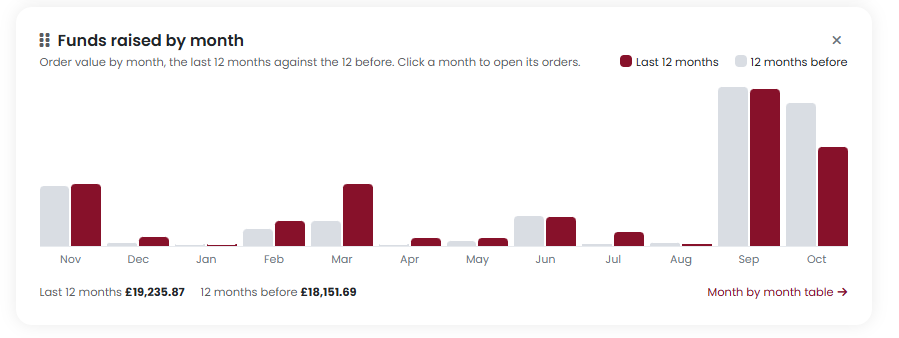
A bar for each of the last 12 months beside the same month the year before, with totals underneath. Click a month to open its orders, or Month by month table for the figures as a table with the change for each month.
Stripe payouts
Your last six payouts with the date paid and the amount. Click a date to open that payout's event breakdown on the Payouts report. Payouts are matched to their charges every Monday, so a payout paid since the last Monday shows "breakdown after Monday" until then. When Finances is set up a third column shows whether each payout has been posted to your ledger, is queued, or failed and will be retried.
Funds raised by event
What each event has taken through your website in the last 12 months, after refunds, with the biggest first and a bar for scale. When Finances is set up there is a link to the Event profit report, which shows costs as well.
The right-hand column
- From PTA Events - our latest notice, with a link to read it. The cross hides that notice only.
- Finances checklist - the six set-up steps for Finances, ticked off as you go, with a link to the Finances Overview. If Finances is not switched on, this panel tells you where an administrator can switch it on.
- Where the money is - the balance of each bank account and the total cash held.
- What it can be spent on - the same money by fund. A fund that has approved funding requests against it shows how much is committed and how much is still available, or "over-committed" in red if the promises exceed the balance.
- Expense claims - claims waiting for your approval and approved claims waiting to be paid, each linking to the claim.
- Funding requests - requests from the school that are received, agreed by the school, or approved but not yet paid.
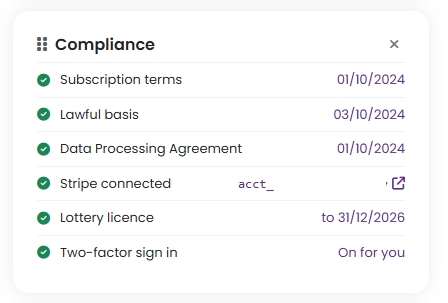
- Compliance - Stripe connection, lottery licence, Data Processing Agreement, the open financial year and whether receipt reading is approved, each with a link on the right to the page that deals with it.
- Plan and fees - your plan and the platform fees that apply.
Making it your own
Every panel can be dragged to a new position or hidden with the cross in its corner, and the page remembers your layout. See How do I move, hide or reset the panels on my dashboard? for the details.
Related reading
Was this article helpful?
That’s Great!
Thank you for your feedback
Sorry! We couldn't be helpful
Thank you for your feedback
Feedback sent
We appreciate your effort and will try to fix the article