Desktop view:
Mobile view:
Step 1: Create an Event
Before you can sell tickets or products, you’ll need to create an event.
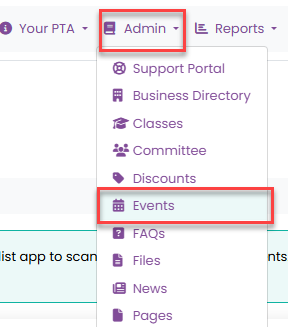
To add a new event, go to Admin > Events, then click Add Event.
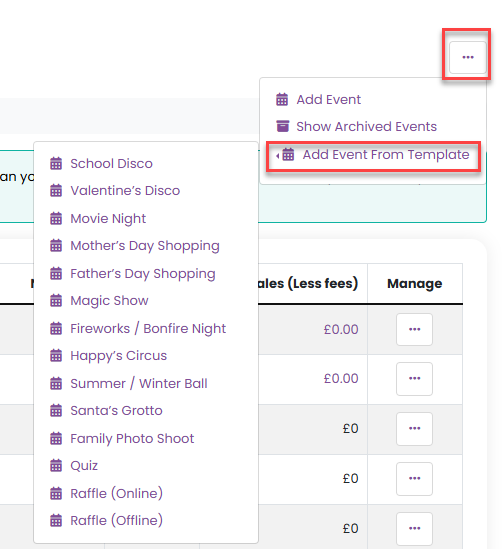
Using Event Templates
To make setup even easier, you can create events using our pre-built templates.
Click here for further information on setting up an event from template.
Step 2: Add Tickets or Products
Once your event has been created, you can add tickets or products for sale.
From the event management menu, select Tickets / Products.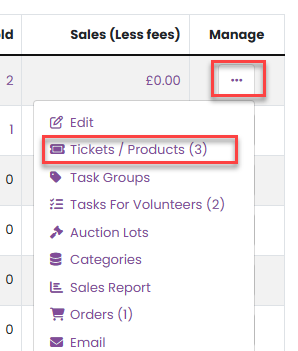
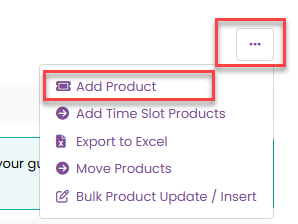
To add a new item, click Add Product from the product management menu.
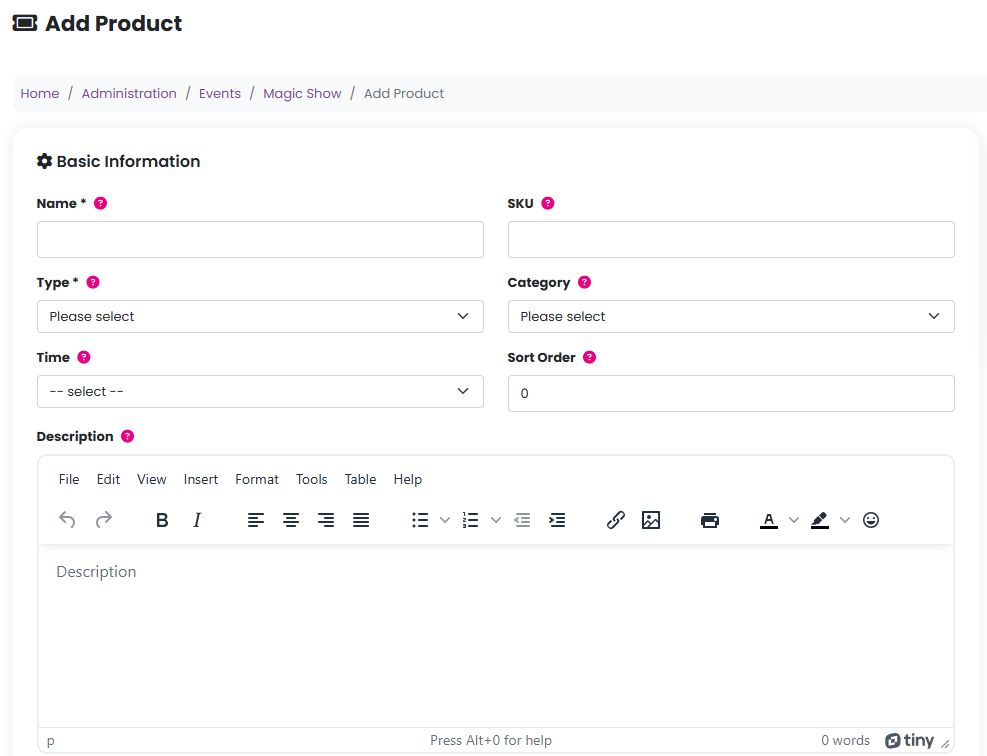
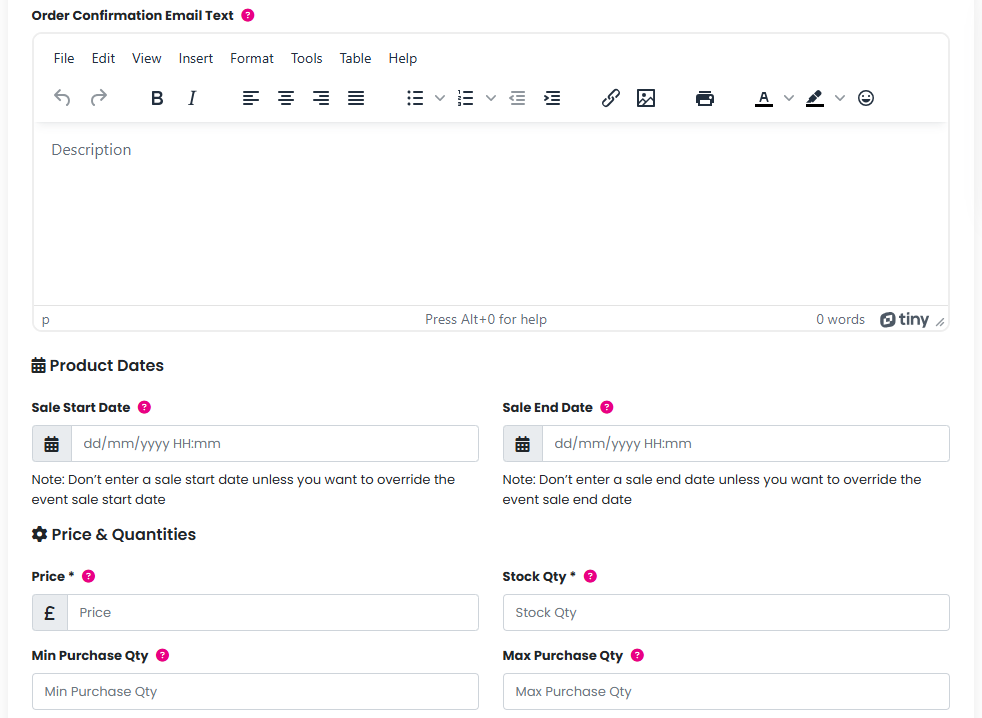
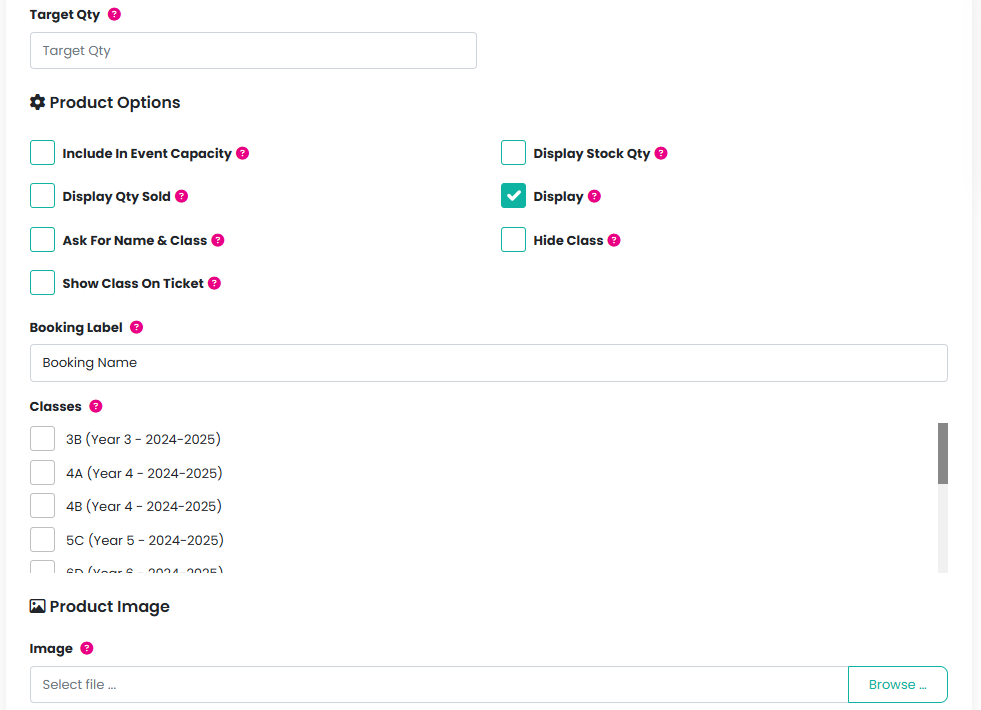
Step 3: Enter Product Details
Complete all relevant information for the ticket or product you wish to sell.
When you’re finished, click Add Product to save it.
SKU Information
Each product requires a SKU (Stock Keeping Unit), which helps with purchasing and sales reporting.
Examples include:
XMASCARDS2024GOKARTSSUMMERFAIRHOTDOGSCIRCUS
If you don’t enter a SKU, one will be generated automatically for you.
Important Notes
There is no limit to the number of events you can create.
There is also no limit to the number of tickets or products you can sell.
Was this article helpful?
That’s Great!
Thank you for your feedback
Sorry! We couldn't be helpful
Thank you for your feedback
Feedback sent
We appreciate your effort and will try to fix the article