You can offer installment payments for your event by setting up multiple products with staggered sales dates. The example below assumes a Ball taking place at the end of April, with tickets priced at £65.
Step 1: Create the Event
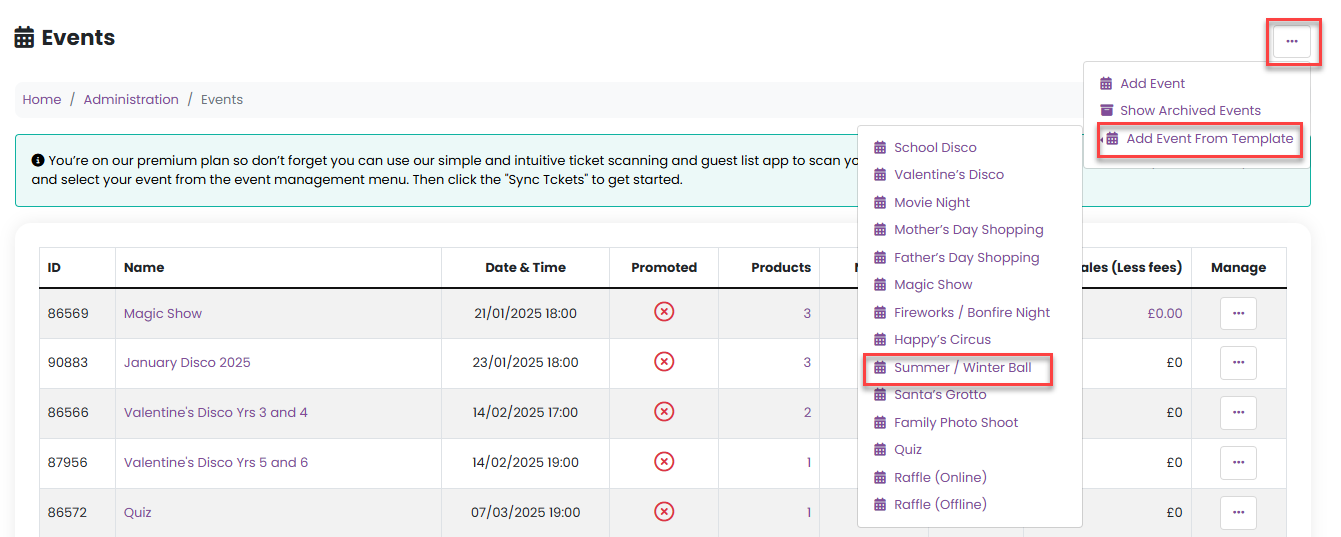
Go to Admin > Events.
From the Add Event From Template dropdown in the Manage menu, select Summer/Winter Ball.
Complete the steps in the template wizard. Click here if you require further information.
Step 2: Set Up Installment Products
Once your event is created, set up the installment products as follows.
1. Create the Deposit Product
Go to Manage > Tickets/Products for the event.
Create a product called Ball Deposit.
Product type: Booking
Price: £20
Sales dates: Now until 1st March
This product allows guests to secure their place with an initial deposit.

2. Create the Second Installment Product
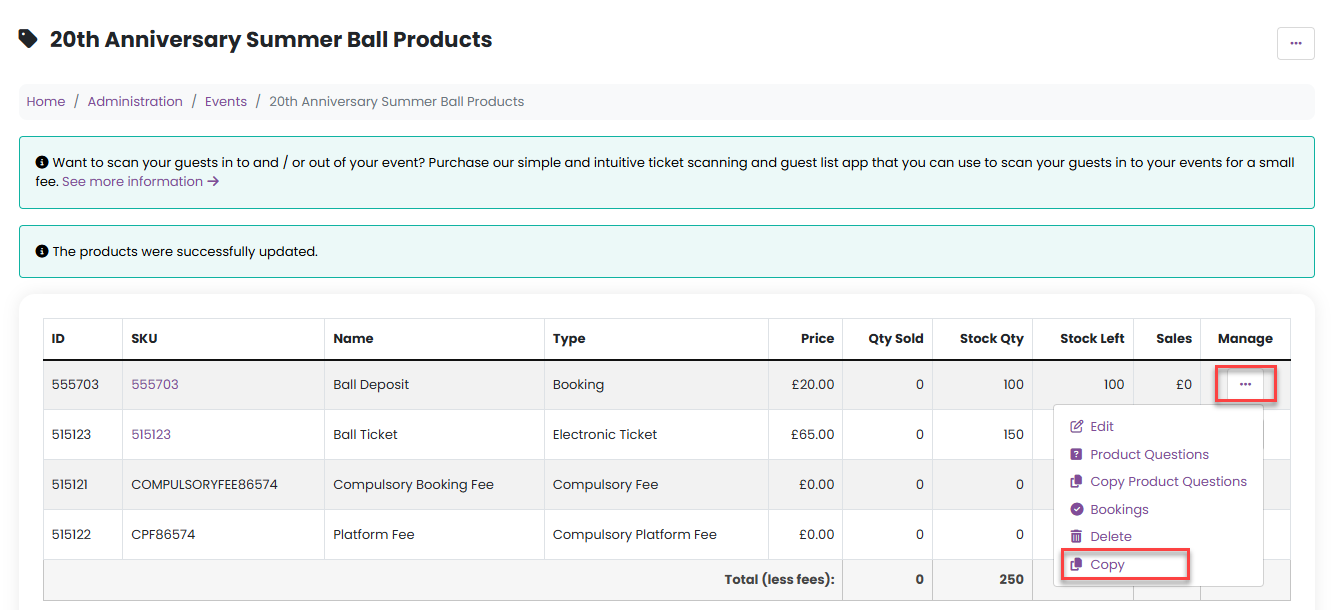
Copy the Ball Deposit product.
Rename it Ball 2nd Installment.
Price: £20
Sales dates: 1st March until mid-April
This ensures the second payment is only available once the deposit window has closed.
3. Create the Final Payment Product
Create a new product called Final Payment.
Product type: Electronic Ticket
Price: £25
Sales dates: Mid-April until sales close
This product can include questions, allowing you to collect important information such as menu choices and table names. Click here for further information on how to add these.
Step 3: Offer a Full-Payment Option
To allow guests to pay the full ticket price upfront:
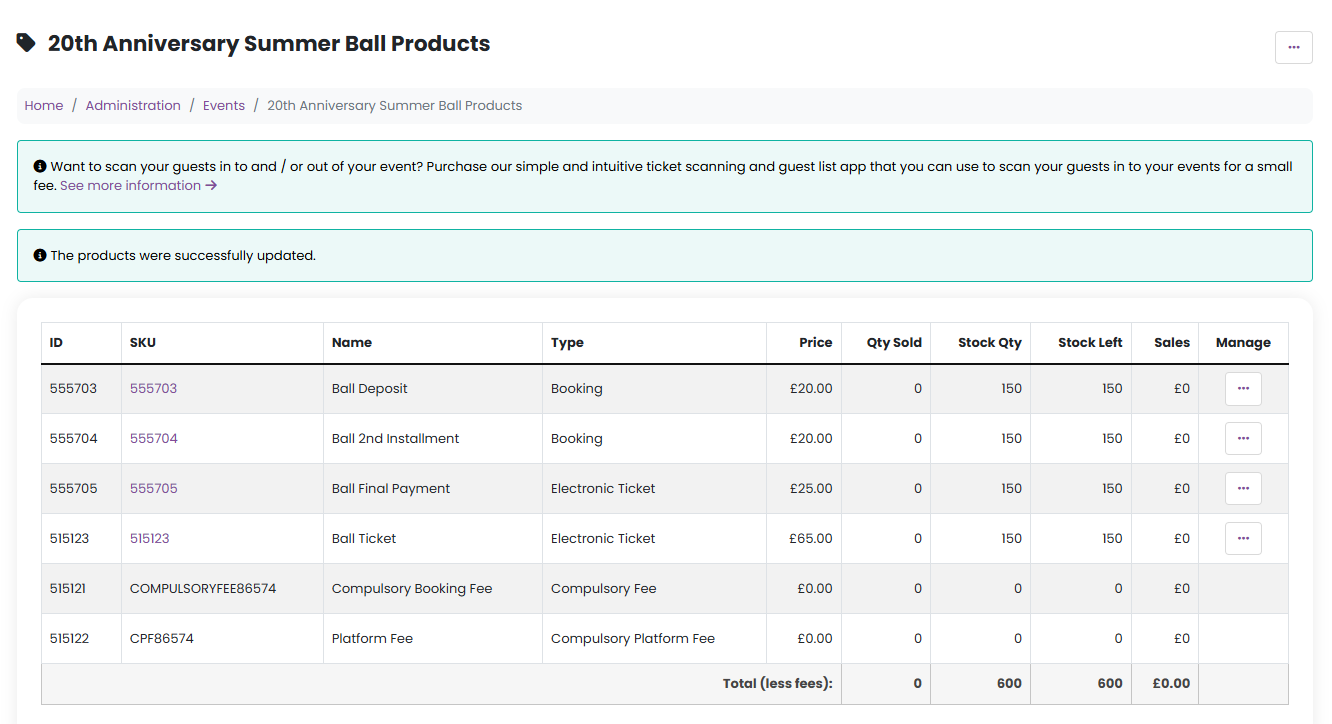
Copy the Final Payment product.
Rename it Ball Ticket.
Price: £65
Remove the sales dates so it is available from now until sales close.
This gives your community the flexibility to either pay in installments or pay in full at the point of purchase.
Step 4: Communicate with Attendees
At each stage, you can use the Bookings Report to contact guests who have purchased the deposit and remind them when the next installment is due:
Go to Reports > Bookings.
Select your event from the Events dropdown.
Use the report to email relevant attendees about upcoming payments.
Was this article helpful?
That’s Great!
Thank you for your feedback
Sorry! We couldn't be helpful
Thank you for your feedback
Feedback sent
We appreciate your effort and will try to fix the article