To add a subscription or membership to your website, first head to Admin > Product Groups and select Add Product Group from the Manage menu:
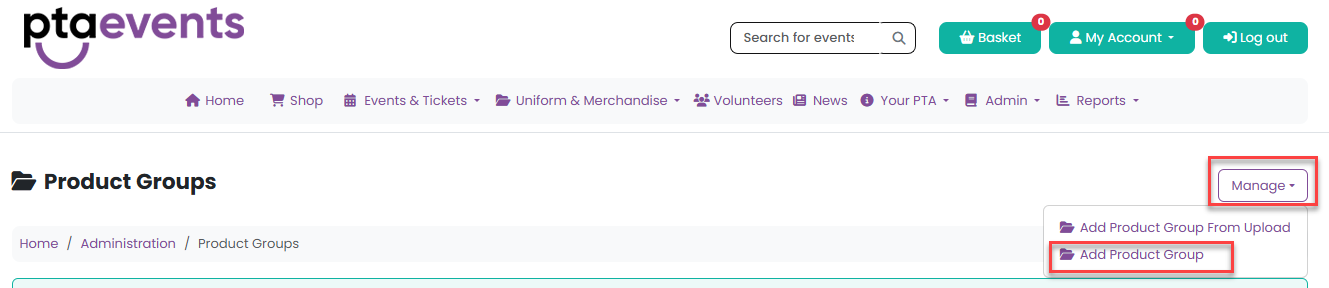
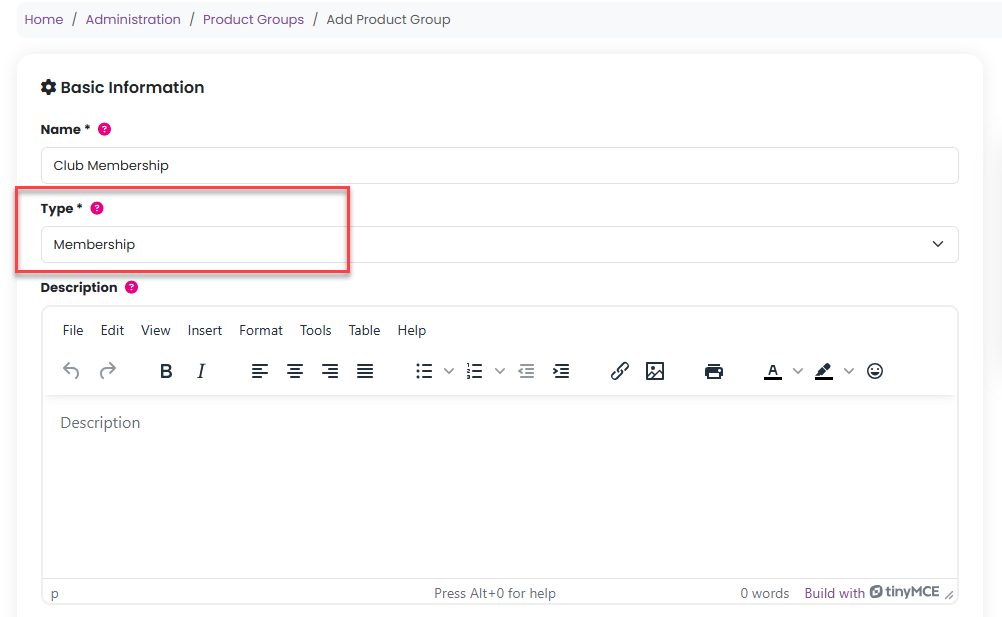
Complete the Name field and select type Membership or Subscription from the Type dropdown list and add a description in the free text Description field :
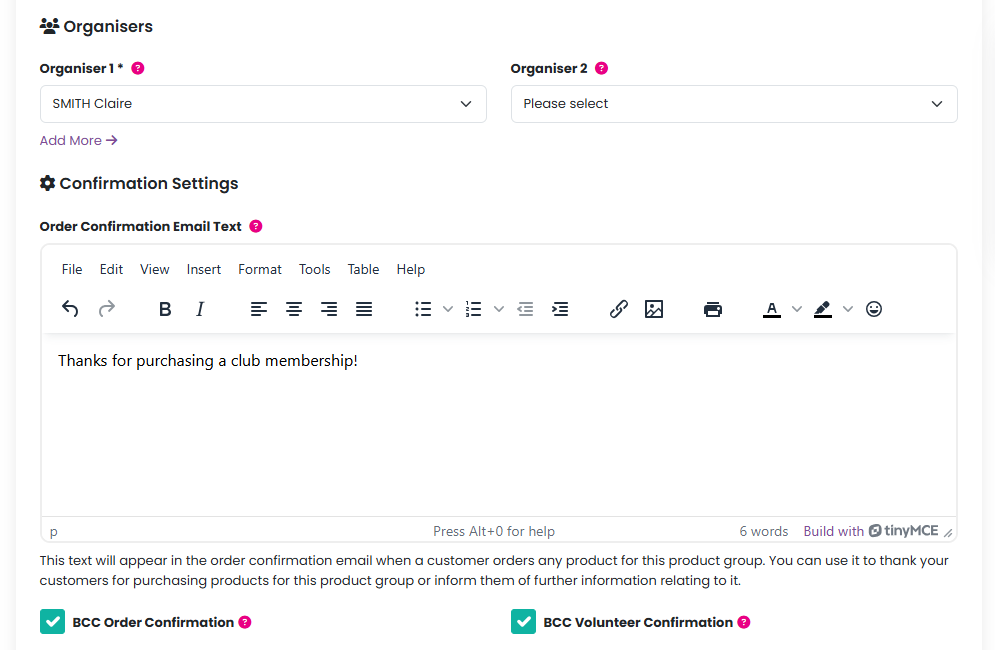
You can then add Organisers (there can be up to 8), enter any text in the free text Order Confirmation Email Text and check the checkboxes if you would like the event organisers to be copied in on order confirmation emails or volunteer confirmation emails:
Then complete the Product Group Date, the Sales Start and End Dates and Times and enter a Purge Data Date. Please note that if no date is set for the purge data date then this will default to 1 year from now.
You can set the fee types to either Voluntary, so the customer can opt-in to pay the fees at checkout, Compulsory, so they must be paid by the customer at checkout, or to None, as fees have been included in the subscription / membership price. Further information can be found in the Help & Hints box.
You can then choose if you would like to add a Product Group Capacity, set a Product Group Password, or add an Image:
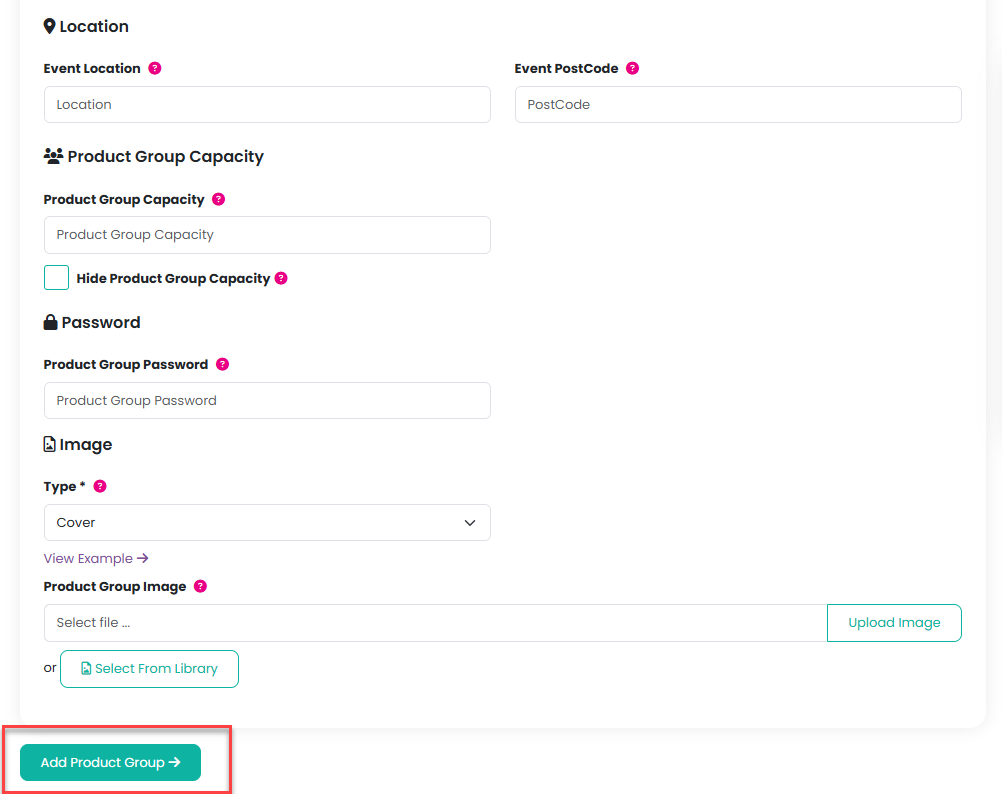
Once you have entered all the information for your product group click on the Add Product Group button.
You can now add products to your product group. Click here for further information.
Was this article helpful?
That’s Great!
Thank you for your feedback
Sorry! We couldn't be helpful
Thank you for your feedback
Feedback sent
We appreciate your effort and will try to fix the article