Desktop view:
Mobile view:
Updating Your Site-Wide Settings
All site-wide settings can be managed by navigating to Admin > Settings. Your settings are organised into tabs, each covering a specific area of your website:
Settings Tabs Overview
Basic Details
Update your organisation’s address and contact information, social media links, security settings, and general organisational details. You can also access your website’s shareable QR code here for you to share with community for easy access to your site.Payment
Connect your site to Stripe to process debit and credit card payments. Upload your small lottery licence.Site Design
Customise your website’s branding, including product card types, fonts and colours, and upload or replace logos.
Click here for more information.Search & Analytics
Take ownership of your website using Google Webmaster Tools and monitor traffic through Google Analytics.Fundraising
Add details about your fundraising goals and achievements. These will be displayed as a fundraising thermometer on your homepage. You can also access the checkbox for accepting donations and the default donation text.Customer Roles
Share administrative responsibilities by granting restricted access to other registered users.GDPR Questionnaire
Provide information about your organisation’s legal basis for processing data in line with GDPR requirements.Pages
Choose which global pages appear in your About Us menu.
Connect to Stripe for processing debit / credit card payments
To accept online payments, your organisation must set up a Stripe account. This can be done by navigating to Admin > Settings > Payment.
We use Stripe because they offer industry-leading security and competitive transaction rates:
Business rate: 1.5% + 20p per transaction
Charity rate: 1.2% + 20p per transaction
Once your Stripe business account is set up, you should immediately apply for the charity rate by emailing nonprofit@stripe.com, including proof of your charitable status.
When creating an event, you can choose how Stripe fees are handled:
Passed on to customers as a mandatory booking fee
Offered as a voluntary fee customers can opt into
Absorbed into your ticket or product pricing
See more information about configuring Stripe here.
Checking Your Branding and Logos
When your website is first set up, we typically source branding and logos from your existing website or affiliated organisation (such as a school, club, or charity). We’ll notify you by email once branding has been applied.
Please review your branding carefully. If changes are needed, go to Admin > Settings > Site Design, where you can:
Select fonts and colours
Replace logos and images
Ensure all uploaded images meet the required size and format specifications. If you need help, feel free to email us or click here for further guidance.
Required Images
We add the following four images to your site:
Logo with text (desktop)
Max size: 600px wide × 66px high
Format: PNG
Background: Transparent
Logo without text (mobile/tablet)
Max size: 300px wide × 66px high
Format: PNG
Background: Transparent
Banner image
Used in the event image gallery and carousel
Size: 600px × 275px
Format: JPG
Facebook share image
Used when sharing links on Facebook
Max size: 300px × 300px
Format: JPG
Adding Committee Members
Once individuals are registered on your site, you can add them as committee members so they are visible to your community. Please click here for further information.
Adding Classes
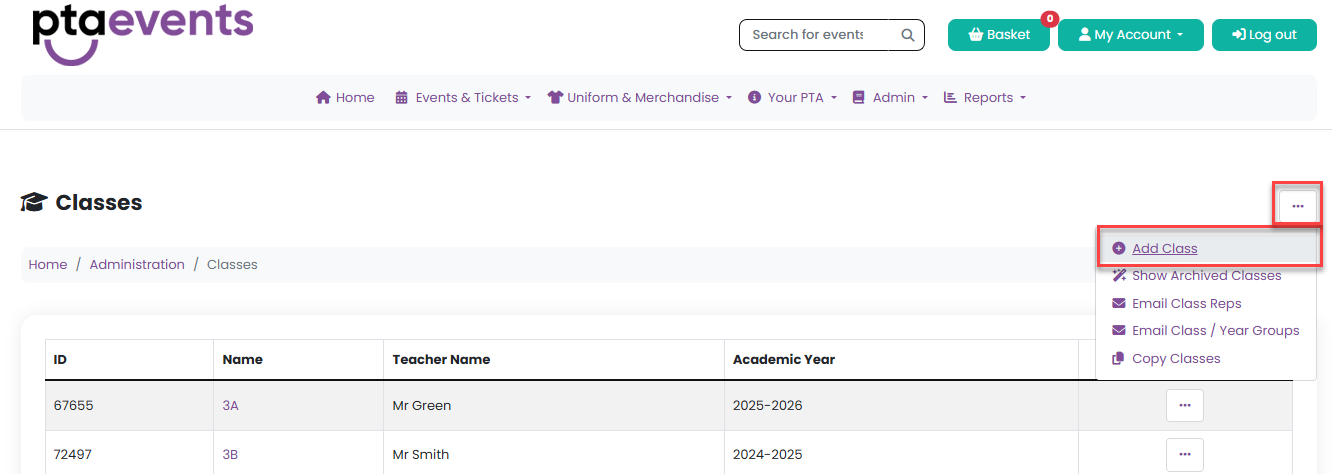
For most child-only events, parents will need to select a class during checkout. To set this up, navigate to Admin > Classes, then choose Add Class from the manage menu.
This ensures a smooth booking experience for parents. Please click here for further information.
Adding an Event Using a Template
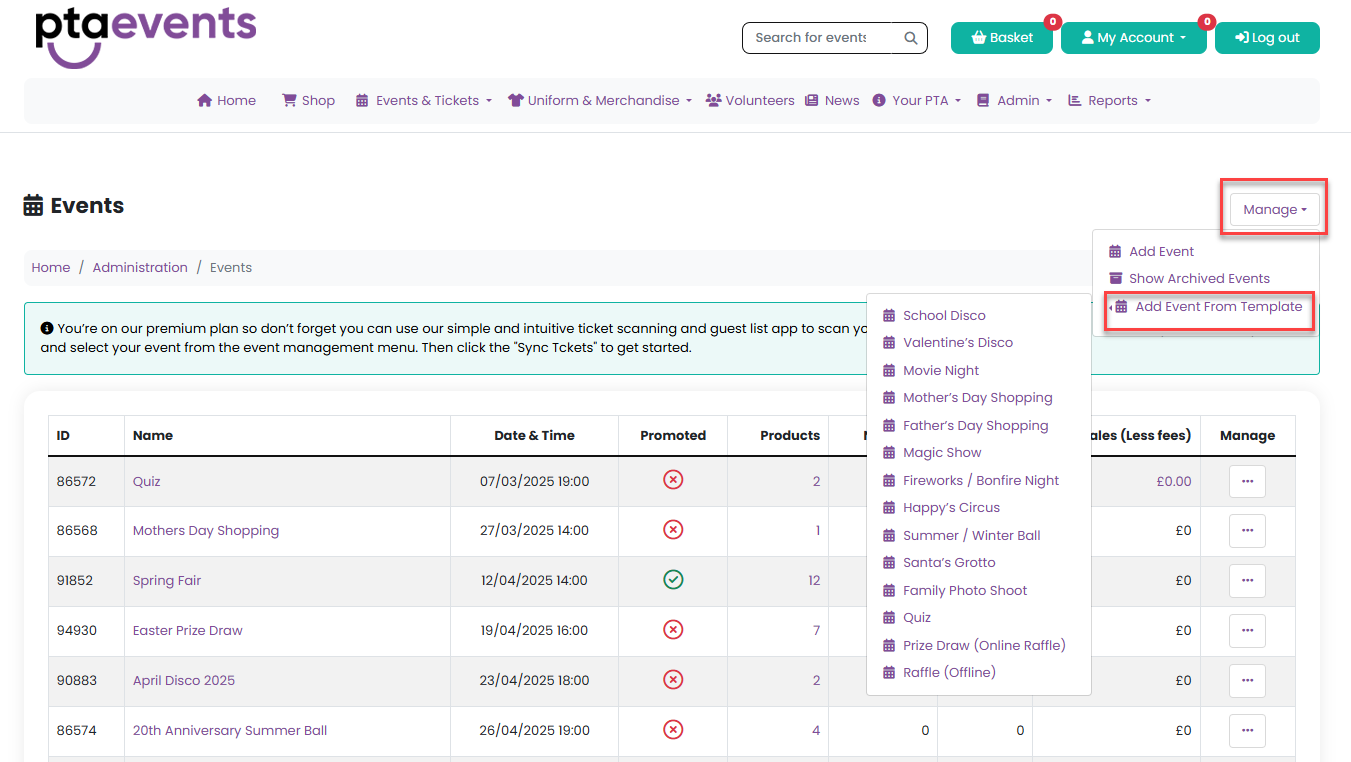
To quickly create common event types, go to Admin > Events and select an event template wizard from the manage menu dropdown.
If you need more flexibility, select Add Event to create a custom event.
Once created, click Manage to:
Add tickets or products for sale
Assign volunteer tasks
Add auction lots
Manage all other event details
Further information can be found here.
Event QR Codes and URLs
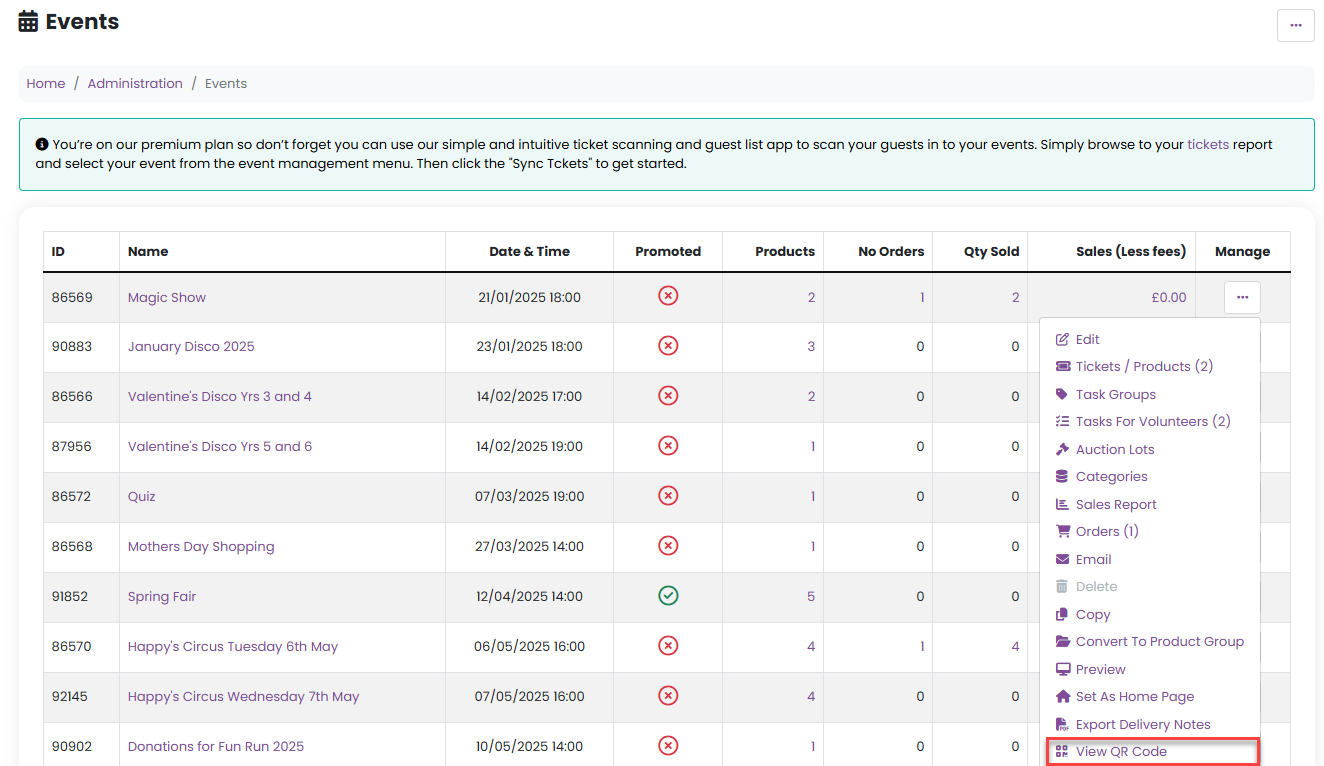
Each event has a unique QR code and event URL for you to send to your community for easy access to your event. To access these:
Go to Admin > Events
Select Manage for the relevant event
Choose View QR Code from the dropdown menu
Further Support
If you need additional help:
Visit the Support Portal via Admin > Support Portal
Email us at support@pta-events.co.uk
Join the PTA Events Facebook Community Support Forum here
We’re always happy to help.
Was this article helpful?
That’s Great!
Thank you for your feedback
Sorry! We couldn't be helpful
Thank you for your feedback
Feedback sent
We appreciate your effort and will try to fix the article