You can only create a Prize Draw (Online Raffle) by using the event template.
You can create a Raffle (Offline) in one of two ways:
Using an Event Template (recommended for speed and ease)
Creating the event from scratch
Using an Event Template -
Option 1: Using an Event Template
Step 1: Select the template
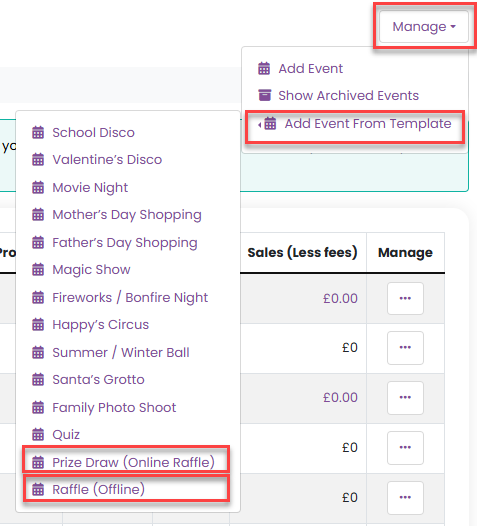
Navigate to Admin > Events, then select Add Event from Template and choose one of the following:
Prize Draw (Online Raffle)
Raffle (Offline) (for a traditional raffle held offline)
Click here for more information on the difference between Prize Draw (Online Raffle) and Raffle (offline).
Step 2: Enter basic event details
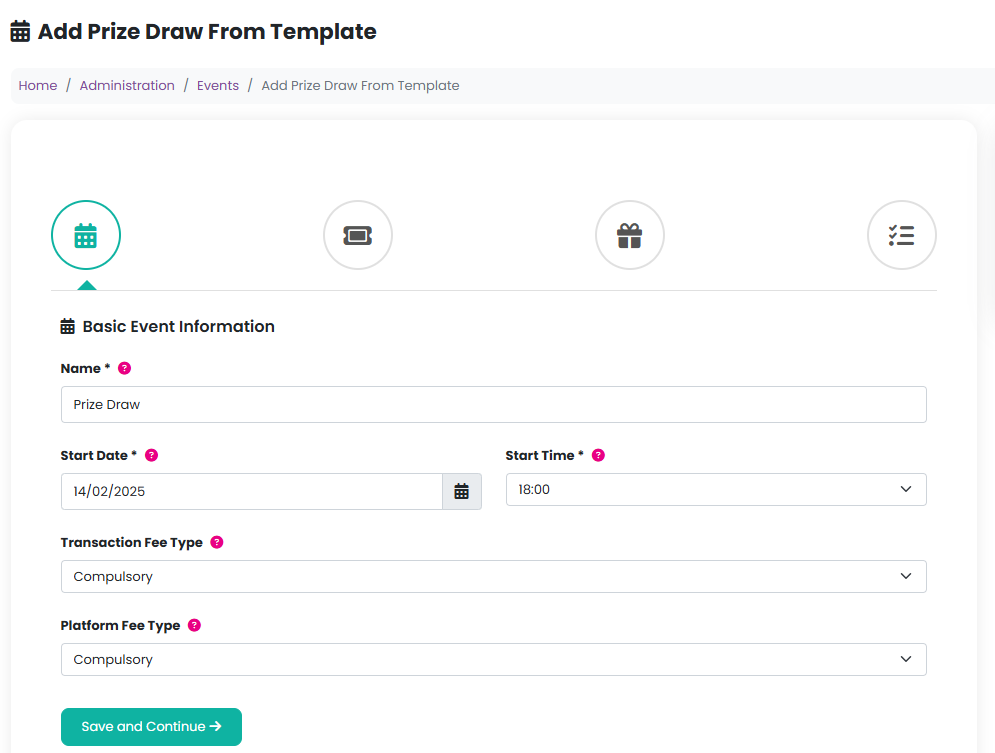
A modal window will open where you can enter the following information:
Name
The name of your Prize Draw or Raffle (e.g. “Christmas Prize Draw” or “Summer Raffle”).Date & time
When the draw will take place.Fee type for processing payments
Choose one of the following:Compulsory (default): Fees are added to the basket and must be paid by the customer.
Voluntary: Customers can choose whether to cover the fees.
None: Fees are already included in your ticket price.
Click Save and continue.
Step 3: Set the ticket price
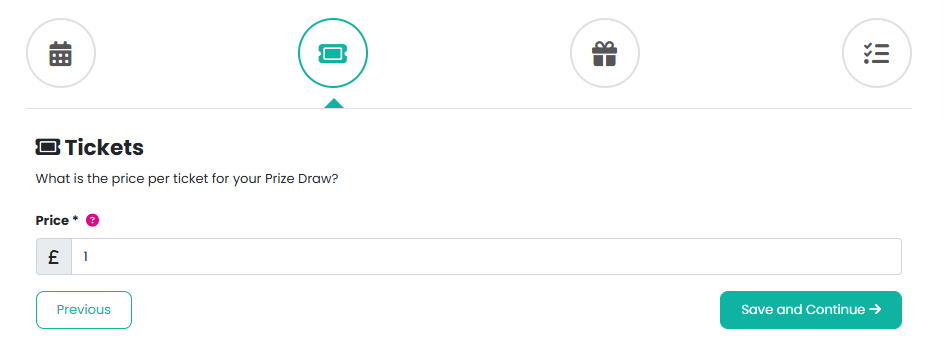
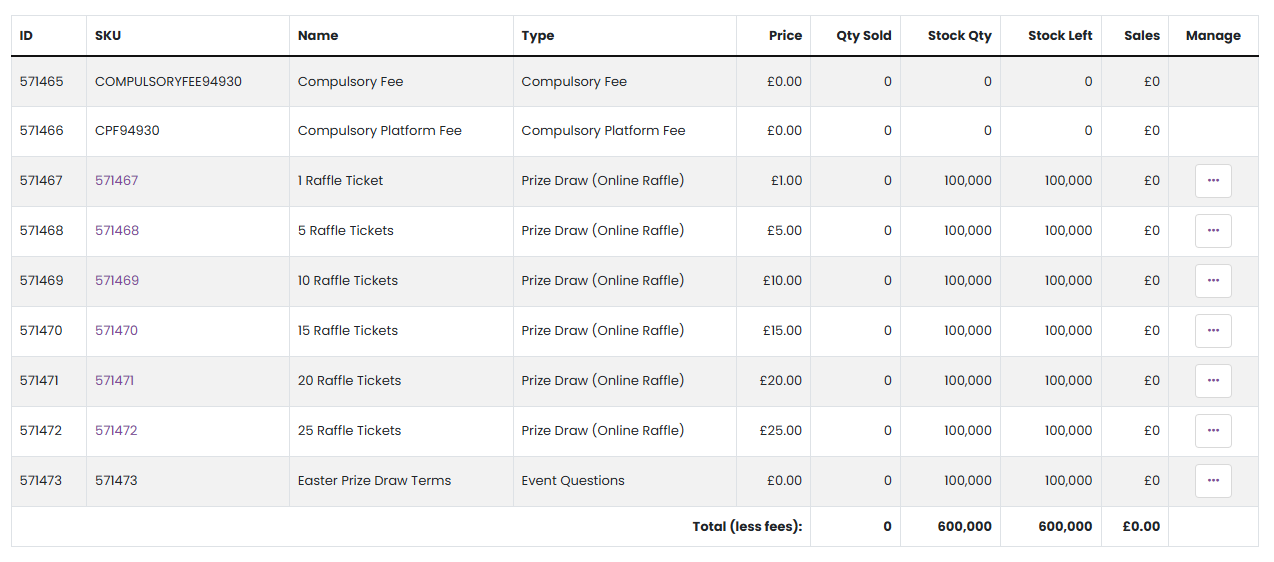
Enter the price of a single ticket. The platform will automatically create ticket bundles to make purchasing easier.
Example: £1 ticket
£1 (1 ticket)
£5 (5 tickets)
£10 (10 tickets)
£15 (15 tickets)
£20 (20 tickets)
Example: £0.50 ticket
£0.50 (1 ticket)
£2.50 (5 tickets)
£5 (10 tickets)
£7.50 (15 tickets)
£10 (20 tickets)
Click Save and continue.
Step 4: Add prizes
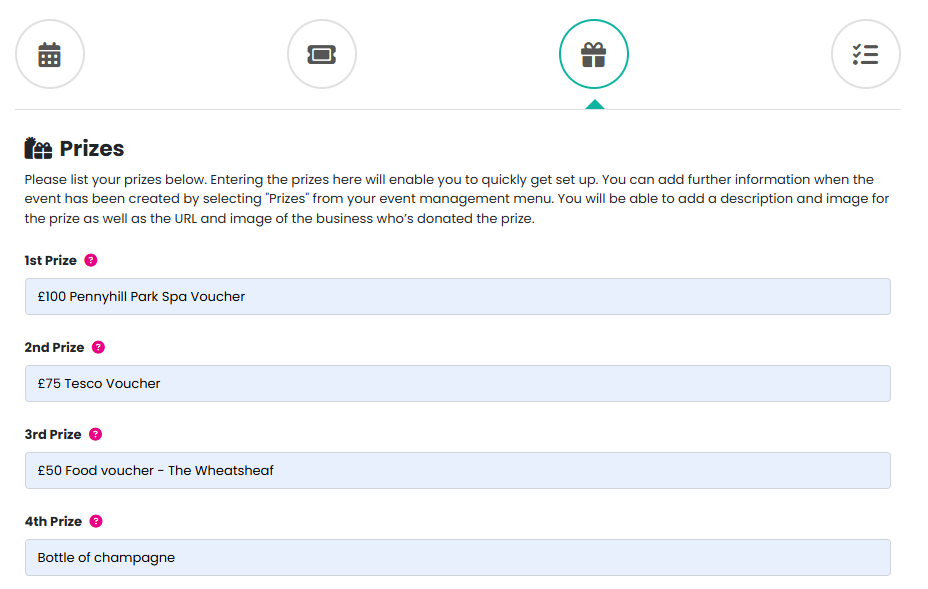
Enter the names of your prizes. You can add up to 30 prizes during setup, with the option to add more later.
Click Save and continue.
Step 5: Add volunteers
Enter the number of volunteers required to help run your raffle efficiently.
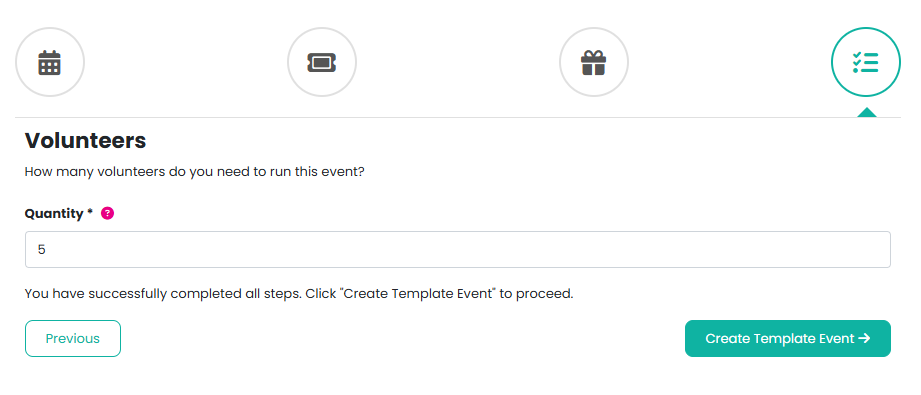
Step 6: Create the event
Click Create template event.
Your event will now be live, with:
Ticket bundles available for immediate purchase
Prizes listed and ready to manage
You can add further prize details (descriptions, images, donor information) by selecting Prizes from the event management menu.
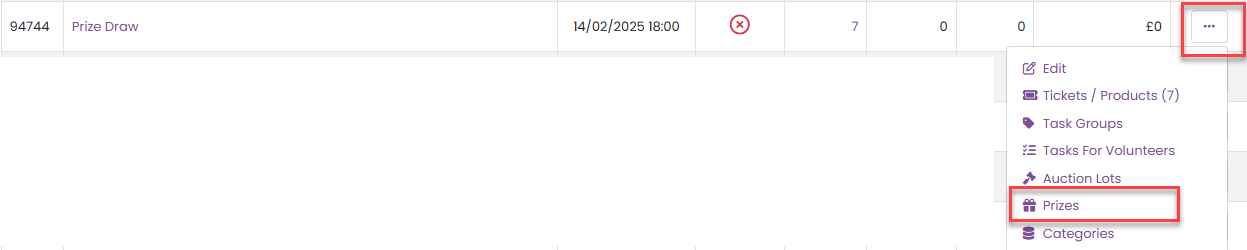
Viewing products and tickets
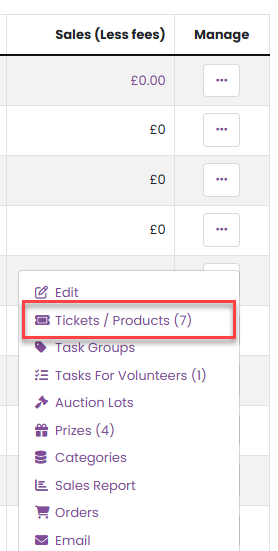
To view the products created:
Click the number in the Products column, or
Select Tickets / Products from the event management menu.
This will show:
Automatically generated ticket bundles
Prize Draw Terms, which are presented to customers during checkout
This will show:
Automatically generated ticket bundles
Prize Draw Terms, which are presented to customers during checkout
Important compliance information
Free entry route:
To comply with UK gambling legislation, a free entry route is automatically offered to customers.
Click here for further information.- Lottery licence requirement:
A valid lottery licence is required for both online and offline raffles. Stripe requires this to ensure that organisations selling raffle tickets are charitable and properly licensed.
Click here for further information.
Option 2: Adding a Raffle (Offline) from Scratch
Click here for more information on the differences between Prize Draws (Online Raffle) and Raffle (Offline).
Step 1: Create a new event
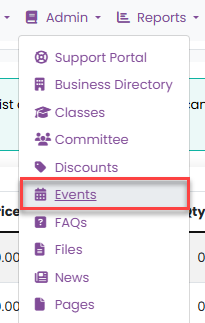
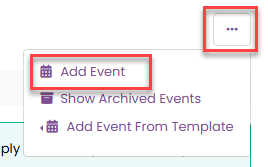
Navigate to Admin > Events and click Add Event.
Step 2: Enter event details
Complete the following fields:
Event name
The name of your raffle (e.g. “Xmas Raffle”).Event type
Select Raffle (Offline).Event description
Optional description of your event.
Event organiser
Select up to 8 organisers from your registered customers.Order confirmation email text
Custom text that appears in the order confirmation email. Use this to thank customers or share important information.BCC order confirmation
Tick this option if you want order confirmation emails to be BCC’d to event organisers.Event date
The date and time the draw will take place (e.g. 25/04/2026 at 18:00).Sales start date
When tickets will go on sale.Sales end date
When ticket sales will close.Fee type
We recommend Compulsory, as raffle fees are higher than standard platform fees:Starter plan:
Prize Draw (Online Raffle): 7.5%
Raffle (Offline): 5%
Premium plan:
Both options: 4.95%
Step 3: Create the event
Click Add event to finish setup.
Please note that if you run your event as a traditional offline raffle, you must email a copy/screenshot of the offline raffle ticket to support@pta-events.co.uk so we can complete our compliance checks.
Please click here for further information on running an offline raffle.
Was this article helpful?
That’s Great!
Thank you for your feedback
Sorry! We couldn't be helpful
Thank you for your feedback
Feedback sent
We appreciate your effort and will try to fix the article